Instead of copying application files and restarting processes manually, use Docker on VPS hosting with a Compose file, persistent storage, and a repeatable release command. This 2026 workflow takes you from a Linux server to an HTTPS deployment; VCCLHosting offers Linux VPS hosting for Indian businesses and developers.
- For docker on vps hosting, use Docker Compose to keep service configuration repeatable.
- VCCLHosting offers Linux VPS hosting for Indian businesses and developers; server administration remains part of this workflow.
- Publish only the reverse proxy, keep application ports private, and preserve persistent volumes.
- Verify HTTPS, backups, and rollback before treating a deployment as production-ready.
Why this matters
A running container is not a finished deployment. Your application also needs a public entry point, durable data, controlled updates, and a recovery path when a release fails.
VCCLHosting VPS hosting fits Indian businesses and developers who need a Linux server for container deployment. The advantage is control over your application environment; the trade-off is the operating-system maintenance, security configuration, and recovery work described here. Do not assume a hosting purchase includes those tasks.
For a single-server deployment in 2026, Docker Compose keeps service definitions together without introducing a cluster. It does not provide failover when the VPS itself stops.
| Deployment method | Best for | Advantage | Limitation |
|---|---|---|---|
| Docker Compose | Repeatable single-VPS deployments | Records services, networks, and volumes in a file | Requires host administration and separate backups |
| Individual Docker commands | Temporary container checks | Starts a container without a Compose file | Configuration becomes harder to reproduce across several commands |
Use Docker Compose for the deployment; reserve individual container commands for inspection and temporary tests.
Before you start
- Server access: Use an Ubuntu VPS with SSH access, a sudo-enabled account, and package repositories providing
docker.ioanddocker-compose-v2. Keep a second SSH session open while changing firewall rules. - Application materials: Have your application image, configuration variables, registry credentials if needed, and a domain whose DNS you control. This guide first deploys a static Nginx page so you can verify the infrastructure independently.
- Networking gotcha: Docker-published ports can bypass ordinary UFW filtering. Check the hosting-side firewall, if one is provided, and Docker-aware host filtering. Do not publish a database port and assume UFW alone makes it private.
The example publishes TCP ports 80 and 443 through a Caddy reverse proxy. Preserve access to your actual SSH port; it is not necessarily port 22. Before public HTTPS setup, point the domain at the VPS and make sure any published IPv6 address reaches the same deployment.
Host preparation
- Refresh package metadata and check the package candidates:
sudo apt update
apt-cache policy docker.io docker-compose-v2
Both packages need an installable candidate. If either shows none, stop and configure a supported package source for your Ubuntu release. Do not mix distribution Docker packages with packages from a different Docker repository.
- Install the engine and Compose plugin, then enable Docker:
sudo apt install docker.io docker-compose-v2
sudo systemctl enable --now docker
sudo docker version
sudo docker compose version
The first version command must show a working server connection, not just a client version. The second must recognise the Compose plugin.
- Create a deployment directory owned by your current account:
mkdir -p ~/docker-site/site
cd ~/docker-site
Continue using sudo for Docker commands rather than granting Docker access casually. Membership in the Docker group grants root-level capabilities on the host.
Expected result: Docker is running, Compose responds, and you have a writable project directory. Resolve package or permission errors before creating the application stack.
Compose configuration
The deployment separates the public proxy from the application. Caddy receives external requests; Nginx serves the example page over the private Compose network. Only Caddy publishes host ports.
- Create a file named
compose.yamlin the project directory:
services:
  app:
    image: nginx:stable
    restart: unless-stopped
    volumes:
      - ./site:/usr/share/nginx/html:ro
    logging:
      driver: json-file
      options:
        max-size: "10m"
        max-file: "3"

  proxy:
    image: caddy:2
    restart: unless-stopped
    ports:
      - "80:80"
      - "443:443"
    volumes:
      - ./Caddyfile:/etc/caddy/Caddyfile:ro
      - caddy_data:/data
      - caddy_config:/config
    logging:
      driver: json-file
      options:
        max-size: "10m"
        max-file: "3"

volumes:
  caddy_data:
  caddy_config:
The log settings rotate each container's JSON logs at 10 MB per file, retaining 3 files. These are example retention settings, not application capacity requirements. Adjust retention to your diagnostic needs and available disk space.
- Create
Caddyfilewith an HTTP-only listener for the initial server check:
:80 {
    reverse_proxy app:80
}
- Create the demonstration page:
printf '%s\n' '<h1>Container deployment works</h1>' > site/index.html
- Validate, download, and start the stack:
sudo docker compose config --quiet
sudo docker compose pull
sudo docker compose up -d
sudo docker compose ps
curl -I localhost
Validation catches Compose syntax problems, not application defects. Inspect the service list and HTTP response separately.
The image tags shown here make the example readable. They are not immutable release identifiers: a later pull can resolve to different image content. For a production deployment in 2026, record the tested image digests and use those exact references in your release configuration.
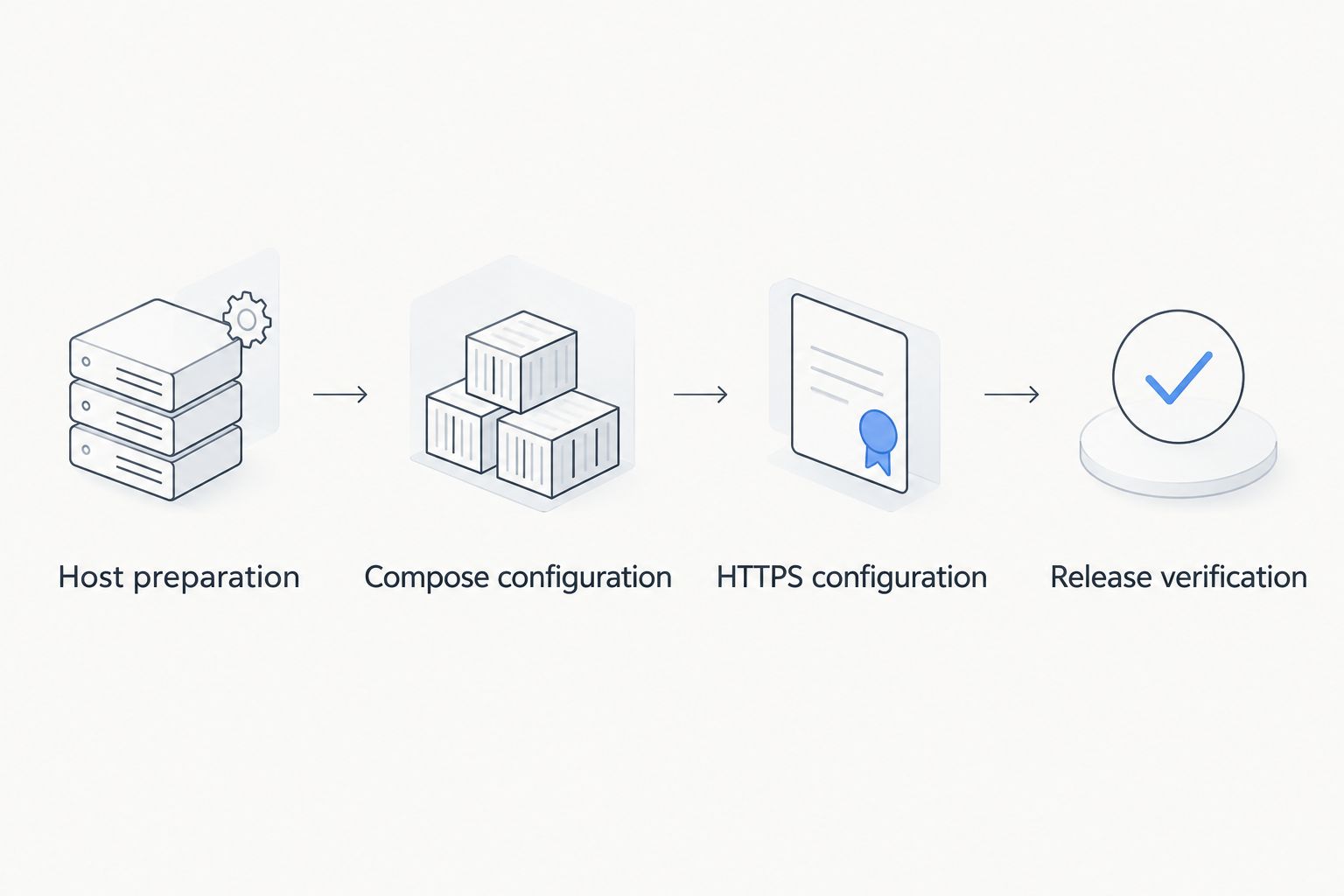
The workflow has four checkpoints: Host preparation, Compose configuration, HTTPS configuration, and Release verification. Each checkpoint must pass before the next one starts.
Expected result: Both services remain running, and the local request returns an HTTP response from the example site. If either container exits, inspect its logs before changing DNS or TLS settings.
HTTPS configuration
-
Set the domain's DNS records to the VPS address. Remove or correct stale records, including an IPv6 record that points somewhere else. Check resolution from outside the VPS as well as from the server.
-
Replace
:80inCaddyfilewith your actual public hostname. Keep thereverse_proxy app:80line and braces unchanged. Do not add an invented example hostname to a production configuration.
With a qualifying public domain, Caddy's automatic HTTPS obtains and renews certificates. Certificate issuance still depends on correct DNS, reachable validation endpoints, and applicable certificate-authority limits.
- Apply the configuration and inspect the proxy logs:
sudo docker compose restart proxy
sudo docker compose logs --tail=100 proxy
A restart is appropriate here because the bind-mounted Caddy configuration changed. It is not the command for applying a new application image.
- Open your actual hostname in a browser using HTTPS. Check the certificate identity, page content, and HTTP-to-HTTPS redirect. Repeat from a connection outside the VPS network.
Expected result: Your public hostname serves the demonstration page over valid HTTPS. The application container has no published host port, and Caddy's certificate state persists in its named volumes.
Release verification
- Inspect service status and recent application output:
sudo docker compose ps
sudo docker compose logs --tail=100 app proxy
sudo docker stats --no-stream
A running status does not prove that login, database access, or background jobs work. For a real application, test its actual user journey and add an application-specific health check using a command that exists inside its image.
- Record the configuration and image identities used by the deployment:
sudo docker compose images
sudo docker image ls --digests
Keep your release configuration in version control without secrets. Record resolved digests alongside the release so rollback does not depend on a mutable tag.
-
Identify what must survive container replacement. The sample page lives in the host's
sitedirectory; Caddy state lives in named volumes. A real database needs its own persistence design and application-consistent backup procedure. -
Back up configuration, required volumes, and application data to a separate location. Test restoration into an isolated environment before approving the 2026 production checklist.
Expected result: You can identify the running release, explain where its durable data lives, and restore that data. A restart policy alone does not satisfy any of those requirements.
Deploy whenever an application image changes
For an application built elsewhere, replace the sample Nginx service with your own registry image. Update the proxy target to the application's actual listening port, and remove the sample site mount unless your image needs it.
Best for: teams publishing versioned application images. Registry-based releases separate building from deployment, but introduce credential management and image-retention responsibilities.
- Authenticate on the VPS if the registry requires it. Use a pull-only credential where the registry supports that permission, and keep credentials out of your Compose file.
- Set the application's image reference to the tested release tag or digest. Save the previous release reference before changing it.
- Validate the updated configuration and deploy the application service:
sudo docker compose config --quiet
sudo docker compose pull app
sudo docker compose up -d --no-deps app
sudo docker compose logs --tail=100 app
- Test the public endpoint and the application's critical operations. If verification fails, restore the previous image reference and recreate the application service again.
Do not use docker compose restart to deploy a newly pulled image. Restarting an existing container does not recreate it from the new image.
This sequence is not a zero-downtime deployment. Recreating a single application container can interrupt requests. Database migrations also need a separate compatibility and recovery plan: reverting the application image does not reverse a schema change.
Troubleshooting
The browser cannot reach the VPS
Check DNS first, then external firewall rules and published ports. Run sudo docker compose ps to confirm the proxy is running, and test locally with curl -I localhost. A successful local request does not prove the public network path works.
Caddy reports a bad gateway
Check that the application is running and listening on the container port named in reverse_proxy. Inside Compose, use the service name app; localhost inside the proxy container refers to the proxy itself, not the application container.
HTTPS certificate issuance fails
Check public DNS, inbound access, and proxy logs. Correct stale IPv6 records and domain spelling before retrying. Repeatedly deleting Caddy's certificate volumes is not a repair strategy and can trigger unnecessary certificate requests.
The updated application still shows the old release
Check the configured image reference and the running container's image identity. Pull the intended image, then recreate the application service with up -d. Also distinguish stale browser or application caches from an unchanged container.
Data disappears after container replacement
Check whether the application wrote to its disposable container filesystem rather than a mounted path. Configure persistence at the application's actual data directory. Never run docker compose down -v as routine cleanup: it removes the project's declared named volumes.
Customize your workflow
Replace the static example only after the networking and recovery checks pass. Add configuration through the mechanism your application supports, and keep databases on private container networks without unnecessary published ports.
For VCCLHosting deployments, confirm the selected Linux VPS resources against your measured workload rather than treating this example as a sizing recommendation. Monitor memory, disk consumption, application errors, and backup results before increasing deployment frequency.
For a SaaS application, extend the process to include database migrations, background workers, and release checks using the VPS hosting for SaaS startups guide.
FAQ
Can I run Docker on VPS hosting?
Yes, Docker runs on a Linux VPS with a supported operating system, suitable kernel support, and permission to run the Docker daemon. Check the hosting environment before deployment; this guide uses Ubuntu and Docker Compose.
Is Docker Compose better than individual Docker commands for a VPS?
Docker Compose is better suited to repeatable, multi-service deployments on one VPS because it stores configuration in a file. Individual Docker commands remain useful for temporary tests and inspection.
Does this Docker workflow work with VCCLHosting?
VCCLHosting offers Linux VPS hosting for Indian businesses and developers. Use this workflow on a server that meets its Ubuntu package, administrative-access, and networking prerequisites.
Which ports should I open for a Docker website?
This example publishes TCP ports 80 and 443 through the reverse proxy. Preserve your actual SSH port and keep application or database ports unpublished unless external access is explicitly required.
Will Docker Compose deploy my application without downtime?
This single-application-container workflow does not guarantee zero downtime. Container recreation can interrupt requests; uninterrupted releases require an additional deployment and traffic-switching design.
Does restarting a Docker container install the new image?
No, restarting an existing container does not recreate it from a newly pulled image. Pull the intended release and use Docker Compose to recreate the service.
Do Docker volumes replace backups?
No, Docker volumes preserve data independently of a container's writable layer, but they are not separate backups. Keep application-consistent copies elsewhere and test restoration.
One last thing
A rollback is incomplete until you account for the database. Before your next 2026 release, write down whether the previous application image can read the new schema. If it cannot, restoring an old container is not a safe recovery plan.