

Instead of keeping your own computer running for every trading session, connect MetaTrader 5 to Forex VPS hosting by installing the desktop terminal inside a Windows VPS and signing in to your broker’s server. Configure your Expert Advisor there, verify its permissions, and disconnect Remote Desktop without signing out of Windows.
- To connect MetaTrader 5 to Forex VPS hosting, install and run the terminal inside the VPS, not your laptop.
- VCCLHosting offers Forex VPS hosting; your broker separately provides your trading account and server details.
- Test Expert Advisors on a demo account before enabling live automated trading.
- Disconnect Remote Desktop without signing out, then verify the terminal remains running.
Why this matters in 2026
A VPS moves the MetaTrader 5 terminal away from your personal computer. Your laptop can disconnect while the terminal continues running inside the remote Windows session, provided that session and the VPS remain active.
Connecting to the VPS and connecting to your trading account are separate tasks. Remote Desktop gives you access to Windows; MetaTrader 5 then connects to your broker. Neither connection replaces the other.
VCCLHosting offers Forex VPS hosting alongside Windows/Linux VPS and other hosting services. VCCLHosting Forex VPS is best suited to Indian traders seeking hosting infrastructure rather than a brokerage account. This guide uses the Windows desktop workflow; confirm that your selected VPS runs Windows before starting.
Choose where the terminal will run
| Setup | Best for | Advantage | Limitation |
|---|---|---|---|
| Local Windows computer | Supervised testing and manual sessions | Direct access without a remote desktop connection | The terminal stops when the computer shuts down |
| Windows Forex VPS | Running a terminal independently of your personal computer | Closing your laptop does not shut down the remote Windows machine | You must maintain Windows, terminal settings, and restart procedures |
A VPS does not guarantee profitable trades, uninterrupted operation, or faster execution. Broker connectivity, server location, resource use, and the trading strategy still matter. Use the VPS to separate trading operations from your everyday computer, not to substitute for risk controls.
Before you start: your 2026 setup checklist
- Prepare Windows access: Have the VPS IP address or hostname, Windows username, password, and any provider-specified Remote Desktop port. Use credentials supplied for your server, not your hosting account password unless explicitly instructed.
- Prepare MetaTrader 5 access: Have your broker’s desktop installer, account login, trading password, and exact server name. Keep your Expert Advisor files, dependencies, and saved settings ready if you are moving an existing setup.
- Check the migration gotcha: An investor password provides read-only access, and an EA licence can restrict where the software runs. Confirm trading credentials and VPS licensing before moving anything; never assume a copied EA is authorised on another machine.
Keep your current terminal available until the VPS passes its checks, but do not let both terminals trade the same automated strategy during the handover. Start with a demo account and keep algorithmic trading disabled while preparing the destination.
Windows remote access
- On your Windows computer, open Remote Desktop Connection. Enter the VPS address in Computer, including the supplied port if your provider specifies one.
- Select Connect and enter the Windows username and password. If Windows presents another saved identity, choose More choices, then Use a different account.
- Check that the destination matches your assigned VPS before accepting a certificate warning. An unfamiliar address is a reason to stop and verify the connection details, not dismiss the warning automatically.
- Once connected, confirm that you are viewing the remote Windows desktop. Open a folder or application there so you can distinguish the remote session from your local computer.
- Review Windows update and restart settings before installing trading software. Schedule maintenance around your trading requirements rather than treating a remote session as protection against reboots.
Expected result: You can use the VPS desktop and reopen the same Windows session with the supplied credentials.
Protect the Windows account as carefully as your broker account. Do not paste credentials into public support chats or share an administrator login with an EA supplier. Use the provider’s secure support process if access fails.
Remote Desktop uses TCP port 3389 by default, but providers can assign a different port or require another access method. Follow your server’s connection details instead of changing firewall rules to match a generic tutorial.
MetaTrader 5 installation and broker login
- Inside the VPS desktop, obtain the MetaTrader 5 installer from your broker’s official source. Downloading it on your laptop does not install it on the server.
- Run the installer inside Windows on the VPS. Open the installed terminal and leave algorithmic trading disabled during account setup.
- Select File, then Login to Trade Account. Enter the account number in Login, the trading password in Password, and the exact broker server in Server.
- If the required server is absent, use File, then Open an Account to search for the broker. Select the correct broker and account server rather than guessing from a similar name.
- Check View, then Toolbox. Review the Trade tab for the expected account details and the Journal tab for connection or authorisation errors.
- Open a chart for a symbol offered by that account. During the instrument’s trading session, confirm that quotes update and that the terminal is not reporting a connection failure.
Expected result: The VPS terminal shows the intended broker account, connects to the correct server, and receives market data when that market is active.
A successful login does not prove that trading is permitted. Read-only credentials can display balances and charts without allowing orders. Check account permissions before diagnosing an EA that connects successfully but cannot trade.
For your 2026 setup record, save the broker name, server name, account type, and terminal installation location. Keep passwords in a password manager, not in that operating checklist.
Expert Advisor files and trading permissions
- In the original terminal, select File, then Open Data Folder. Locate the required EA under MQL5, then Experts. Include its documented indicators, libraries, and other dependencies.
- In the VPS terminal, use File, then Open Data Folder again. Copy each dependency into the corresponding destination folder; copying everything beside the terminal executable is not equivalent.
- Open View, then Navigator. Refresh the Expert Advisors list or restart the terminal so the EA appears. Resolve missing files before attaching it to a live chart.
- Open the required symbol and timeframe, then attach the EA. Review its Inputs rather than assuming the source computer’s settings transferred automatically. Load a saved settings file if the EA supports that workflow.
- Open Tools, then Options, then Expert Advisors. Review Allow algorithmic trading and the settings that disable automation after account or profile changes. Review the EA’s own trading permission as well.
- Enable Algo Trading only after checking the account, chart, position sizing, and EA settings. Do not enable DLL imports or WebRequest access unless the EA’s documented requirements call for them and you trust the code.
Expected result: The EA loads on the intended chart without dependency errors, and its permissions match the test you intend to run.
Begin with 1 chart and 1 EA instance as a controlled test. This is a troubleshooting starting point, not a VPS capacity recommendation. Add workloads only after observing the terminal’s behaviour and resource use.
Session handover and persistence check
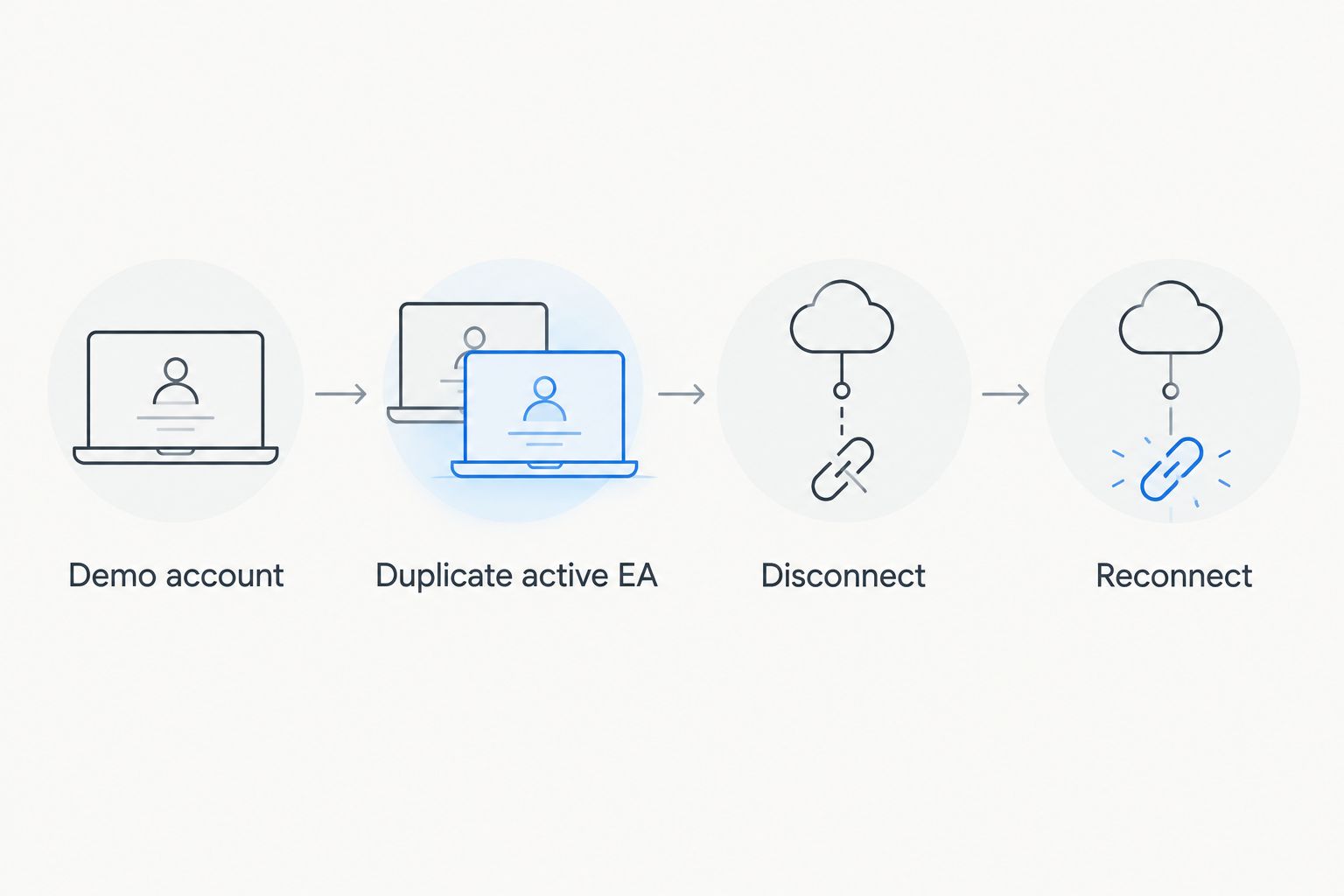
- On a demo account, inspect Toolbox, then Experts and Journal. Confirm that the EA initialises without errors. Lack of an immediate trade is not proof of failure; the strategy must encounter its entry conditions.
- Check the original computer for a duplicate active EA. Disable that copy before enabling the corresponding VPS instance for live trading.
- Close the Remote Desktop window and choose to disconnect if prompted. Do not select Windows Sign out: signing out closes applications in that user session.
- Reconnect with the same Windows account. Confirm that MetaTrader 5 remains open, the intended account is connected, and the EA is attached to the correct chart.
- Arrange a controlled reboot test before relying on unattended operation. Verify what starts after reboot, which user session is required, and whether the EA’s permissions survive the restart.
Expected result: Disconnecting your computer leaves the terminal running, and you have a tested procedure for restoring operation after a VPS restart.
Treat the 2026 acceptance check as an operating test, not an installation milestone. A terminal that opens correctly today still needs a recovery procedure for updates, crashes, and reboots.
Move an existing MetaTrader 5 setup to your VPS
Migrating an existing strategy uses the same connection workflow, but adds a settings handover. Transfer files first; transfer responsibility for trading last. This keeps the destination inactive while you verify it.
- Record the source configuration: Note symbols, timeframes, EA inputs, required dependencies, and any strategy identifiers used to distinguish positions.
- Prepare the destination: Install MetaTrader 5, connect the correct account, and copy only the files the strategy requires. Recheck licensed components on the VPS.
- Compare behaviour: Use a demo environment to confirm chart setup, indicator loading, and log messages. Check symbol suffixes because broker symbol names must match the strategy’s configuration.
- Complete the handover: Disable automated trading on the source before activating it on the destination. Review existing positions before allowing the migrated EA to manage the account.
Running 2 active copies of the same strategy against the same account can create duplicate or conflicting trade instructions. Do not use a second active terminal as an unplanned failover system.
For wider planning, the Forex VPS guide for algorithmic and EA traders covers the hosting context around this workflow. Keep the migration checklist focused on account identity, dependencies, permissions, and ownership of trading activity.
Troubleshooting connection and EA failures
Remote Desktop cannot reach the VPS
Check the assigned address, port, server power state, and permitted access method. If the VPS is running but unreachable, use the provider’s console or support route; do not disable the entire Windows firewall as a diagnostic shortcut.
MetaTrader 5 rejects the account login
Verify the account number, trading password, and exact broker server together. A valid account on the wrong server will not connect correctly. Confirm whether the account belongs to MetaTrader 5 rather than another trading platform.
The account connects, but the EA cannot trade
Check for an investor password, disabled Algo Trading, EA-level restrictions, and broker-side trading permissions. Read Experts and Journal for the actual error before changing strategy inputs. A closed market or an unmet entry condition is different from a permission failure.
The EA disappears or reports missing files
Use File, then Open Data Folder in the running VPS terminal to confirm the destination. Check dependencies, refresh Navigator, and verify that the software licence permits this installation. Reinstalling Windows is not a first response to an incorrectly placed file.
Trading stops after you leave or reboot
Establish whether you disconnected, signed out, or restarted Windows. Reopen the relevant user session and inspect the logs. A Windows startup shortcut alone does not prove that trading resumes after reboot; test the complete login and application-start sequence.
Customize your workflow
Once the basic setup works, separate maintenance from trading operations. Keep a record of terminal paths, account-to-terminal assignments, EA versions, and restart checks. Back up settings before changing the configuration.
VCCLHosting provides the hosting layer; your operating checklist must also cover the terminal, broker connection, and EA. Confirm responsibilities for Windows updates, backups, monitoring, and recovery rather than assuming those tasks are included.
For your 2026 maintenance routine, repeat the demo checks after changing an EA, moving accounts, or altering startup behaviour. Add terminals gradually and observe Windows resource use during the periods when your strategies actually operate.
FAQ
How do I connect MetaTrader 5 to a Forex VPS?
Connect to the Windows VPS through Remote Desktop, install MetaTrader 5 inside that session, and sign in through File, then Login to Trade Account. Your broker supplies the trading account credentials and server name.
Does MetaTrader 5 keep running when I close Remote Desktop?
MetaTrader 5 keeps running when you disconnect an active Windows session, provided the VPS and session remain running. Signing out, shutting down, or restarting Windows closes the terminal.
Do I need my laptop switched on after connecting the VPS?
No. Once MetaTrader 5 runs inside the VPS, your laptop is only an access device. Verify this by disconnecting and reconnecting before relying on the setup.
Why can I see my account but not place trades?
An investor password gives read-only access, while disabled trading permissions can also prevent orders. Check the account credentials, Algo Trading settings, EA permissions, and terminal logs.
Can I copy my Expert Advisor directly to the VPS?
You can transfer the EA files, but the destination also needs the correct dependencies, settings, and licence permissions. Use Open Data Folder inside the VPS terminal to locate the correct folders.
Will MetaTrader 5 restart automatically after a VPS reboot?
Not unless you configure and test a restart workflow that works with your Windows session. Confirm account login, terminal startup, broker connectivity, and EA permissions after a controlled reboot.
Does VCCLHosting provide my MetaTrader 5 broker login?
Your broker provides your MetaTrader 5 trading account and server details. VCCLHosting provides hosting services, so Windows access credentials and trading credentials serve different purposes.
One last thing
A connected chart is not proof that your trading workflow works. The stronger acceptance test is returning to the same running terminal after disconnecting, with the correct account, EA permissions, and clean logs. Finish that check before leaving the setup unattended.