
Instead of restarting your trading script on a laptop, connect Zerodha Kite Connect to a VPS through its Python SDK, complete the broker login, and run your application as a supervised service. Start with a read-only connection check before allowing the application to submit orders.
- Zerodha Kite API VPS hosting needs broker authentication, protected credentials, and process supervision—not just a running server.
- VCCLHosting offers Linux and Windows VPS hosting for Indian businesses and developers.
- Validate Kite Connect with read-only requests before connecting an order-execution strategy.
- A service restart cannot renew an expired access token or resolve an uncertain order state.
Why this matters
A VPS separates your application from your laptop's power, network, and login session. It does not remove Zerodha's authentication requirements or make a trading strategy safe.
VCCLHosting is a VPS hosting option for Indian developers running Kite Connect applications. VCCLHosting offers Linux and Windows VPS hosting; this walkthrough uses Linux, Python, and systemd. You remain responsible for application security, authentication, and trading controls.
For a 2026 deployment, separate three jobs: authenticating the account, keeping the process running, and deciding whether trading is permitted. Treating these as one job creates dangerous restart behaviour.
Before you start
- Broker access: Have a Zerodha account, a Kite Connect application, its API key and API secret, and control of the configured redirect destination. Confirm the permissions and current broker requirements for your intended API activity.
- Server access: Have administrator access to a Linux VPS with systemd, Python, a virtual environment, and outbound HTTPS connectivity. Use SSH keys and restrict administrative access; the example application needs no public web listener.
- Authentication gotcha: Kite Connect access tokens expire. A VPS cannot turn an interactive broker login into a permanent session. Before deploying in 2026, confirm Zerodha's current authentication, static-IP, and order-API requirements for your account and integration.
Use your own broker application throughout. Never paste an API secret, login password, or access token into a support ticket, screenshot, repository, or shared terminal recording.
Runtime configuration
Choose the operating environment
Both operating systems can host a client application, but their supervision tools differ. Best for this guide: Linux, because the commands below use systemd. Choose Windows when your existing application requires Windows—not because Kite Connect inherently requires it.
| Environment | Best for | Advantage | Limitation |
|---|---|---|---|
| Linux VPS | Python applications administered through SSH | systemd provides service startup and logs | You must maintain Linux permissions and services |
| Windows VPS | Applications with Windows-only dependencies | Supports a Windows-based application environment | The systemd configuration below does not apply |
Neither operating system removes token expiry, broker restrictions, or the need to reconcile orders after interruptions.
Prepare the application directory
- Install Python, its virtual-environment package, and an editor using your distribution's package manager.
- Create a dedicated application user and directory. On a distribution with
useradd, run:
sudo useradd --system --create-home --shell /usr/sbin/nologin kitebot
sudo install -d -o kitebot -g kitebot -m 700 /opt/kite
sudo -u kitebot python3 -m venv /opt/kite/.venv
sudo -u kitebot /opt/kite/.venv/bin/pip install kiteconnect python-dotenv
- Create
/opt/kite/.env, owned bykitebot, with these entries:
KITE_API_KEY=
KITE_API_SECRET=
KITE_ACCESS_TOKEN=
- Enter your application credentials after the relevant equals signs. Leave the access token blank until authentication, then protect the file:
sudo chown kitebot:kitebot /opt/kite/.env
sudo chmod 600 /opt/kite/.env
Expected result: the application has an isolated Python environment, and its credentials are readable only by its owner and privileged administrators. Mode 600 grants the owner read/write access and grants no access to other users.
Broker authentication
Complete the Kite Connect login
- Create
/opt/kite/authenticate.pywith the following content. Keep the file owned bykitebot.
from getpass import getpass
from dotenv import load_dotenv, set_key
from kiteconnect import KiteConnect
import os

ENV_FILE = "/opt/kite/.env"
load_dotenv(ENV_FILE)

kite = KiteConnect(api_key=os.environ["KITE_API_KEY"])
print("Open this broker login address in your browser:")
print(kite.login_url())

request_token = getpass("Request token from completed redirect: ").strip()
session = kite.generate_session(
    request_token,
    api_secret=os.environ["KITE_API_SECRET"],
)
set_key(ENV_FILE, "KITE_ACCESS_TOKEN", session["access_token"])
print("Access token saved. No order was submitted.")
- Run the script from an interactive SSH session:
sudo -u kitebot /opt/kite/.venv/bin/python /opt/kite/authenticate.py
- Open the generated login address in your browser and complete Zerodha's authentication. The browser can run on your workstation; it does not need to run on the VPS.
- At your configured redirect destination, obtain the
request_tokenreturned after successful authentication. Enter that value at the hidden terminal prompt. Do not paste the entire callback address.
The SDK methods login_url() and generate_session() handle different parts of the flow. The first creates the login address; the second exchanges the returned request token using your API secret. A request token is not the access token used for subsequent API calls.
Expected result: /opt/kite/.env contains a non-empty KITE_ACCESS_TOKEN. The terminal reports that it saved the token without printing the secret value.
Keep the redirect destination under your control. Do not send the callback through a public URL-inspection service to retrieve its parameters.
Connection service
Validate read-only API access
- Create
/opt/kite/connection_check.py, owned bykitebot:
import os
import sys
import time
from dotenv import load_dotenv
from kiteconnect import KiteConnect
from kiteconnect.exceptions import TokenException

load_dotenv("/opt/kite/.env")
kite = KiteConnect(api_key=os.environ["KITE_API_KEY"])
kite.set_access_token(os.environ["KITE_ACCESS_TOKEN"])

while True:
    try:
        kite.profile()
        print("Authenticated account check succeeded", flush=True)
    except TokenException:
        print("Authentication expired or invalid; stopping", flush=True)
        sys.exit(78)
    time.sleep(60)
- Run it manually using the virtual environment's Python interpreter. Confirm that it prints the success message, then stop it with
Ctrl+C. - Keep this test separate from your strategy. It checks authenticated account access every 60 seconds; it does not validate market-data permissions, subscriptions, order permissions, or execution quality.
The exit code 78 is an application convention used here to identify an authentication failure. The service configuration below treats that code differently from an ordinary crash.
Expected result: authenticated requests succeed without placing an order or printing account details. For your 2026 acceptance record, save the test timestamp and outcome—not the token or returned account data.
Configure process supervision
- Create
/etc/systemd/system/kite-check.serviceas an administrator:
[Unit]
Description=Kite Connect read-only connection check
Wants=network-online.target
After=network-online.target

[Service]
Type=simple
User=kitebot
WorkingDirectory=/opt/kite
ExecStart=/opt/kite/.venv/bin/python -u /opt/kite/connection_check.py
Restart=on-failure
RestartSec=10s
RestartPreventExitStatus=78
NoNewPrivileges=true
UMask=0077

[Install]
WantedBy=multi-user.target
- Load and start the service:
sudo systemctl daemon-reload
sudo systemctl enable --now kite-check.service
sudo systemctl status kite-check.service
sudo journalctl -u kite-check.service -n 30 --no-pager
- Disconnect SSH, reconnect, and inspect the service again. Confirm that successful checks continue independently of your terminal.
- After completing a fresh broker login, restart the service so the process loads the newly saved token:
sudo systemctl restart kite-check.service
The configuration waits 10 seconds before restarting an ordinary failed process. It deliberately does not restart a process that exits with code 78: repeatedly retrying an invalid token does not repair authentication.
Expected result: systemd supervises the read-only checker, while an authentication failure stops it for operator action. This is process supervision, not unattended trading approval.
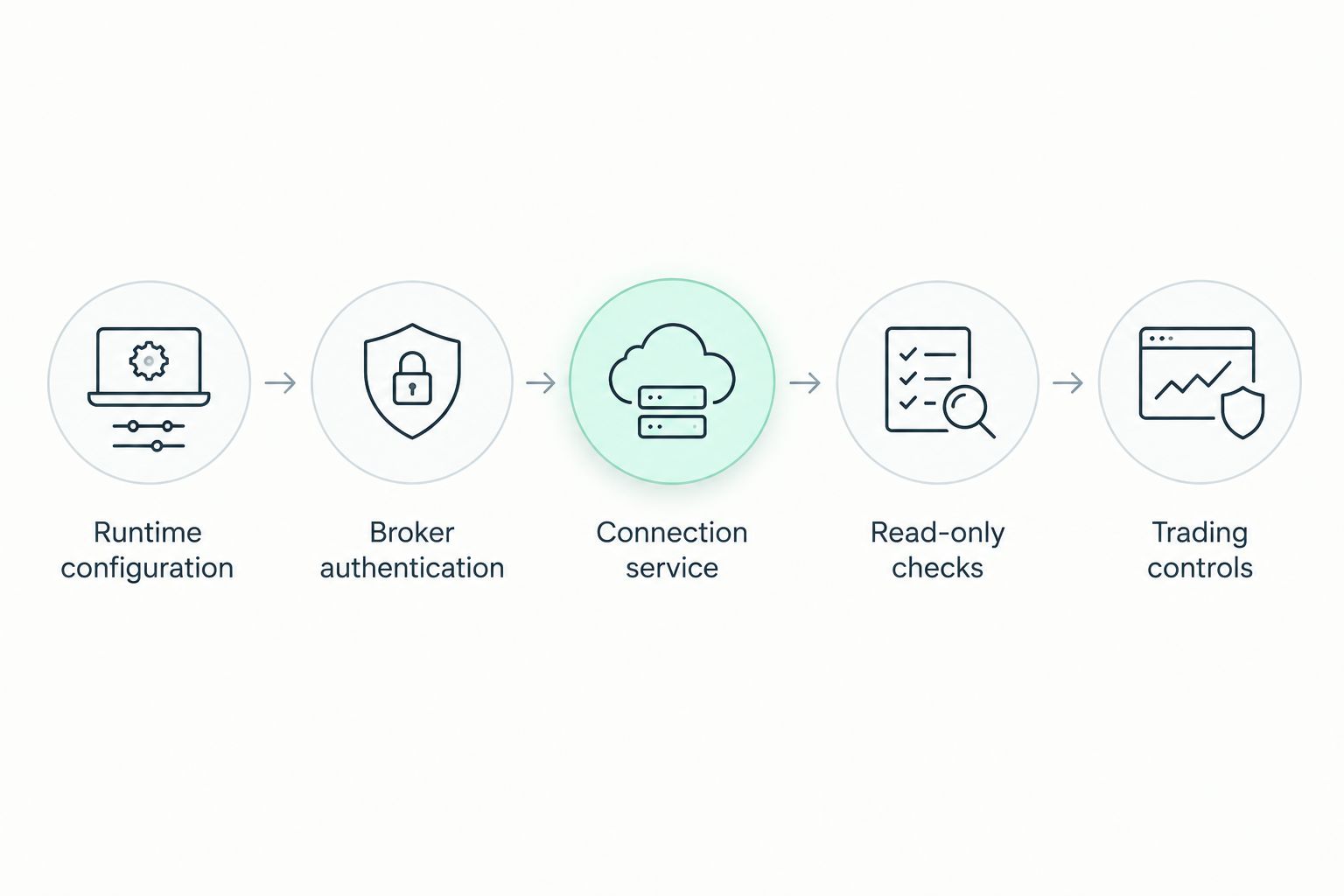
A successful service status proves that the process exists. Confirm successful API responses in its logs as a separate check; a running process and a usable broker session are not the same thing.
Second workflow: market-data streaming
Use a WebSocket connection when your application needs streamed market data rather than periodic account checks. The server preparation and broker authentication remain the same; the application adds KiteTicker and subscription handling.
- Authenticate with the same application credentials and current access token.
- Construct
KiteTickerusing the API key and access token. Configure itson_connect,on_ticks,on_close, andon_errorcallbacks. - In
on_connect, subscribe using current instrument tokens from Kite Connect's instrument data. Select the subscription mode your application needs. - Track when usable data last arrived. Suspend trading when required data becomes stale or the stream disconnects.
- On reconnection, restore subscriptions and reconcile broker-side state before permitting new orders.
Best for streamed strategies: a WebSocket consumer with explicit reconnect and stale-data handling. Its advantage is event-driven data delivery; its limitation is the additional connection and subscription state your application must manage.
Do not copy an instrument token from an old example and assume it identifies today's intended contract. Resolve the exchange, symbol, expiry where applicable, and instrument token before subscribing.
Expected result: the application receives the intended instruments and reports disconnections clearly. Receiving ticks alone does not prove that order submission is authorised or safe.
Troubleshooting
Authentication fails after a restart
A process restart does not renew a broker session. Complete the broker login again, save the new token, and restart the service. Confirm the API key and secret belong to the same Kite Connect application.
The callback produces no usable request token
Check that the application's configured redirect destination matches the destination you control. Complete a fresh login and exchange the newly returned request token promptly; do not keep retrying a previously consumed token.
The script works manually but fails under systemd
Check ownership of /opt/kite, the .env permissions, and the absolute interpreter path in ExecStart. Run the manual test as kitebot, not as root, so both tests use the same permissions.
The service runs but the strategy receives no ticks
The profile checker does not subscribe to market data. For a streaming application, inspect subscription callbacks, current instrument tokens, required data access, and connection errors. Distinguish a quiet instrument from a broken connection.
An order request times out
Do not resend an uncertain order blindly. Inspect the broker's order book and reconcile the original intent before retrying. For a 2026 production deployment, document this recovery path before enabling automated execution.
Customize your workflow
Keep the read-only checker as a diagnostic, then build trading controls into a separate strategy service. Do not turn the sample's restart policy into an order-retry policy.
- Trading controls: define permitted instruments, exposure limits, and an operator-controlled stop mechanism.
- Recovery: reconcile open orders and positions after startup, reconnects, and ambiguous responses.
- Observability: distinguish process health, authentication health, market-data freshness, and order-state consistency.
- Maintenance: test dependency changes outside the live trading process and record the deployed versions.
VCCLHosting supplies VPS hosting; your broker session and execution logic remain application responsibilities. Confirm the server's public IP configuration and the broker's current requirements before relying on an order workflow.
FAQ
How do I connect Zerodha Kite API to a VPS?
Install the Kite Connect SDK on the VPS, complete Zerodha's browser login, exchange the request token for an access token, and configure your application with that token. Validate a read-only API request before enabling order execution.
Is Linux or Windows better for Zerodha Kite API VPS hosting?
Linux fits the Python and systemd workflow in this guide; Windows fits applications with Windows-only dependencies. Neither operating system removes broker authentication or trading-control requirements.
Can my Zerodha algorithm run after I disconnect SSH?
Yes, an application managed by a system service can continue after you disconnect SSH. Its broker session can still expire, and its network connection can still fail.
Can a VPS automatically renew my Kite Connect access token?
A VPS does not remove Kite Connect's broker authentication requirements. Complete the supported authentication flow and make the application stop safely when its session becomes invalid.
Do I need a static IP for Kite Connect order requests?
Confirm the current Zerodha order-API requirements for your account and integration before deployment. Configure any required IP registration and ensure the VPS's outbound public IP matches the approved configuration.
Does a successful profile request mean my algo is ready to trade?
No, a profile request proves authenticated account access only. Validate market-data access, applicable order permissions, risk controls, and recovery behaviour separately.
What should I do if a Kite Connect order request times out?
Check the broker's order book before deciding whether to retry. A lost response does not prove that the original order failed, so blind retries risk duplicate exposure.
One last thing
A healthy server can still run an unsafe trading application. Make the final 2026 deployment test an interruption test: disconnect the data stream, invalidate the session, and restart the process while order submission is disabled. Confirm that each event leaves the application stopped or explicitly reconciled—not silently ready to trade.