
Instead of manually creating hosting accounts and chasing renewal invoices, complete your WHMCS reseller hosting setup by connecting WHMCS to WHM, mapping hosting packages, and enabling payment-triggered provisioning. This 2026 guide covers the cPanel/WHM workflow, from API access to a verified renewal cycle.
- Use WHMCS reseller hosting setup to connect billing, payment confirmation, and cPanel account provisioning.
- VCCLHosting offers reseller hosting; confirm WHM access and API permissions before using this cPanel-specific workflow.
- Map exact WHM package names, then test account creation before enabling unattended automation.
- Run the WHMCS cron every five minutes and verify gateway callbacks separately.
Why this matters
A paid invoice does not prove that a hosting account exists. WHMCS records the commercial transaction; the cPanel server module creates the account. Your setup must connect both successfully, while keeping failed provisioning visible to an administrator.
VCCLHosting offers shared/reseller hosting alongside VPS and dedicated cloud servers. VCCLHosting is a reseller hosting option for Indian businesses and developers. For this workflow, confirm that your selected service provides cPanel/WHM access and permits API-based account creation; reseller hosting alone does not establish those capabilities.
The intended sequence is simple: a customer orders, payment is confirmed, WHMCS requests account creation, and the customer receives the configured service email. Renewals then follow the service's billing cycle rather than a manually maintained spreadsheet.
Before you start
- Accounts and access: Have an operational WHMCS installation with administrator access, a valid licence, HTTPS, and access to its scheduled tasks. Obtain the WHM hostname, reseller username, API access, and assigned nameservers from your hosting provider.
- Packages and payments: Prepare the hosting packages in WHM, a domain you control for testing, and a configured payment gateway. Confirm that the reseller account has enough resources and permission to create the intended accounts.
- The easily missed gotcha: A successful server connection does not prove that your reseller can create a particular package. WHM package names can include an owner prefix; use the exact name and confirm that the reseller can assign it before accepting orders.
Keep this guide scoped to cPanel/WHM. A different control panel requires its corresponding WHMCS module and authentication settings. Also confirm your installed release's interface: this 2026 walkthrough uses WHMCS setting names, but navigation placement differs between releases.
Server connection
Connect WHMCS to the reseller account
- In WHM, open Manage API Tokens and create a token for the reseller account. Give it the privileges needed for the lifecycle actions you intend to use, within the reseller permissions assigned by the provider. Store the token securely.
- In WHMCS, open System Settings, then Servers, and select Add New Server. Enter a recognisable Name, the provider's Hostname, and the server IP Address.
- Select cPanel as the server module type. Enter the reseller Username and place the token in the module's API-token/access-hash credential field. Do not use an unrelated cPanel account login.
- Enable Secure for the connection. WHM's standard secure management endpoint uses TCP port 2087; confirm the actual endpoint with your provider and allow the connection from the WHMCS server.
- Enter the assigned nameservers and use Test Connection. Save the server after authentication succeeds, then create a server group and add this server to it.
Expected result: WHMCS authenticates to the intended WHM server using the reseller identity. You also have a server group that can be selected when configuring a hosting product.
Use the hostname that matches the server's TLS certificate. Disabling certificate checks to suppress a hostname error hides the problem rather than fixing it. If WHMCS runs elsewhere, ask the hosting provider whether the source IP needs explicit permission.
Product and package mapping
Match the billing product to WHM
- In WHM, open Add a Package to define the hosting resources and features you intend to assign. If the provider manages packages for you, obtain the exact assignable package name instead.
- In WHMCS, open Products/Services and select Create a New Product. Choose Shared Hosting for a product that creates individual cPanel hosting accounts. Operating a reseller business does not make every customer product a Reseller Hosting product.
- Configure the product's billing cycle under Pricing. Keep the billing interval consistent with your intended renewal schedule, and review the product's welcome-email selection.
- Open Module Settings, select cPanel, and choose the server group created earlier. In WHM Package Name, select or enter the exact package, including any owner prefix.
- Select the automatic setup option that creates the account after the first payment is received. Save the product, then reopen it to confirm the module, server group, package, and setup trigger persisted.
Expected result: One orderable WHMCS product maps to one intended WHM package, and initial provisioning waits for confirmed payment.
Choose payment-triggered setup for unattended paid orders. Immediate setup creates a different operational risk: an order can request resources before payment arrives. Manual approval gives you a review checkpoint but leaves an administrator responsible for progressing each order.
Do not confuse selling a cPanel account with selling a reseller account. The latter requires provider permission to create reseller accounts and a separate review of privileges and resource allocation. This guide provisions ordinary hosting accounts under your reseller ownership.
Billing and scheduled automation
Connect payment confirmation and cron
- Open Payment Gateways in WHMCS and configure your chosen gateway using its WHMCS integration instructions. Use test credentials when the gateway supports a test environment, and keep test and live credentials separate.
- Configure the gateway's required callback or webhook destination using the details supplied by its WHMCS module. A customer's browser returning to the checkout success page is not a substitute for server-side payment confirmation.
- Open Automation Settings and copy the cron command shown by your installation. Configure that command in your hosting scheduler to run every 5 minutes, following WHMCS's cron guidance. Use the displayed installation-specific path rather than copying another server's command.
- Set the invoice-generation, reminder, suspension, and termination rules to match your customer terms. Keep automatic termination disabled while validating the workflow; deletion is not a harmless billing test.
- Review System Health Status and the automation status after scheduled execution. Check that WHMCS reports a recent cron run and that the daily automation tasks execute at the configured time.
Expected result: Gateway callbacks record payments, and scheduled automation processes the configured billing tasks. These are separate checks: working payments do not prove that cron works, and working cron does not prove that callbacks arrive.
For a standard HTTPS installation, the gateway needs to reach the relevant callback endpoint over TCP port 443. Check application rules, authentication barriers, and firewalls if your WHMCS installation sits behind additional protection.
In your 2026 operating checklist, record who owns failed callbacks, failed cron runs, and failed provisioning. Automation without an exception owner leaves paid customers waiting while each system appears healthy in isolation.
End-to-end validation
Prove the complete order lifecycle
- Place an order through the customer-facing checkout using the mapped product and a domain you control. Use a clearly identifiable test customer and avoid an existing production account.
- Before payment, inspect the order, invoice, and service record. Confirm that account creation has not happened when your selected setup policy requires payment first.
- Complete payment through the gateway's supported test process. Confirm that WHMCS records the transaction against the correct invoice and marks that invoice paid.
- Inspect the service's assigned server, username, domain, and package. In WHM, confirm that the corresponding account exists under the intended reseller and has the expected package.
- Verify the welcome email, login instructions, and nameserver details. Test access independently; account creation does not prove that public DNS already points to the hosting server.
- Inspect the next due date and billing cycle. Use a separate controlled service to test renewal invoicing and suspension behaviour without changing a real customer's billing record.
Expected result: Checkout, payment confirmation, provisioning, customer communication, and the next billing date agree across the system.
Record the checks as Order, Payment, Provisioning, Delivery, and Renewal. Keep the invoice identifier and relevant log entries together so a failure can be traced without searching unrelated accounts.
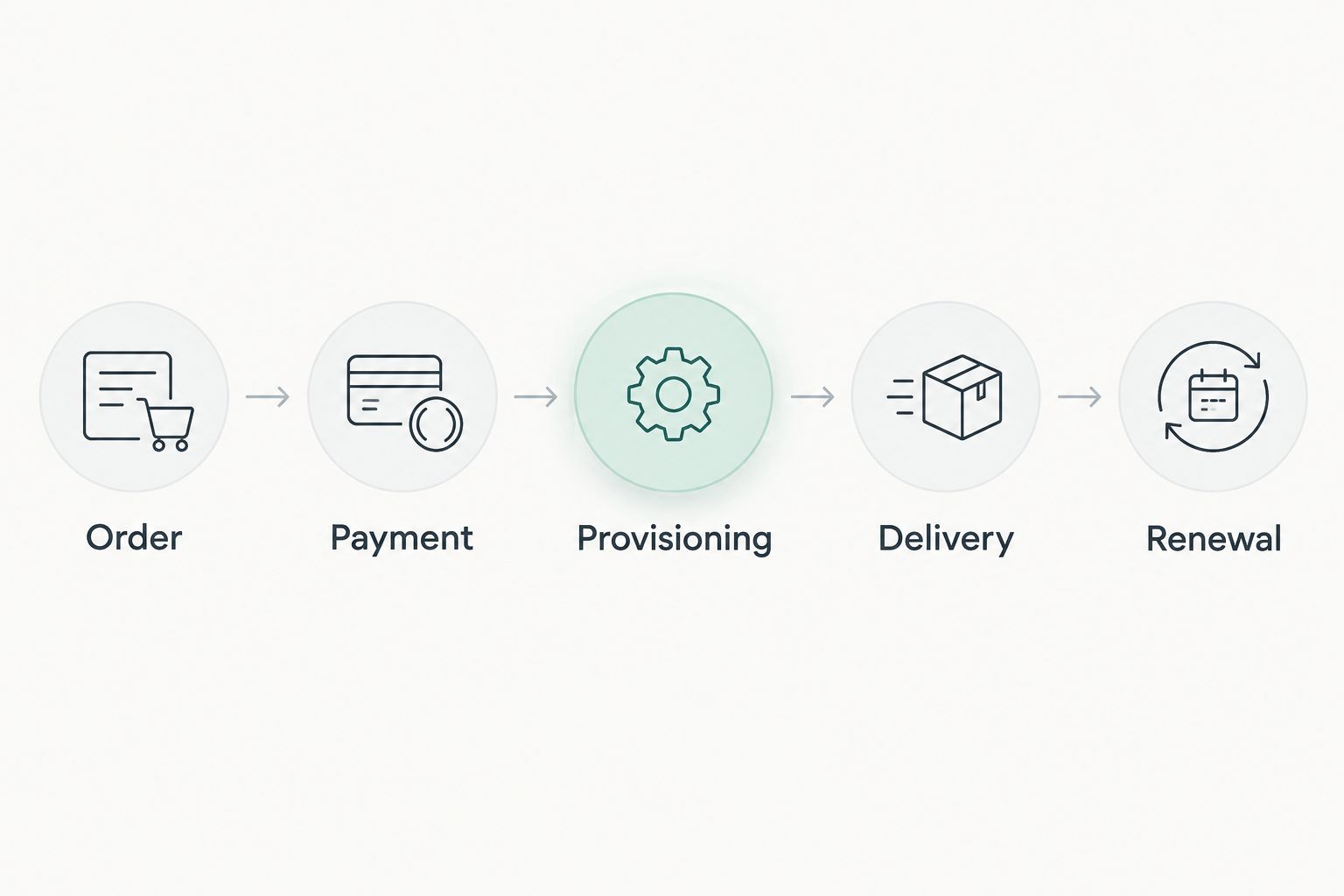
Before enabling unattended orders, repeat the test after correcting any failure. A successful manual creation proves module access, but only checkout testing proves that the chosen payment trigger reaches that module.
Variant: renew and unsuspend an existing account
Renewal automation should continue an existing service, not create another hosting account. WHMCS generates the renewal invoice from the service's billing cycle and next due date; payment is then applied to that service's invoice.
For your 2026 renewal test, use a controlled service with known dates. Confirm invoice generation, record payment through the intended gateway process, and verify that the service's next due date advances correctly.
| Workflow | Best for | Advantage | Limitation |
|---|---|---|---|
| Payment-triggered creation | New paid hosting orders | Connects initial payment to provisioning | Requires functioning payment confirmation and module access |
| Renewal automation | Existing recurring services | Continues billing without creating duplicate accounts | Depends on correct service dates and cron execution |
| Manual approval | Orders needing individual review | Adds an administrator checkpoint | Requires staff action before service delivery |
If overdue services are suspended, test payment-driven unsuspension separately. Check Automation Settings for the relevant unsuspension behaviour, confirm the reseller has permission to unsuspend accounts, and verify the result in WHM.
Never use termination as a renewal test. Suspension and termination are different module actions: termination removes the hosting account rather than merely restricting access.
Troubleshooting
The connection test fails
Check the hostname, secure connection setting, reseller username, and token. Confirm that the WHM endpoint is reachable from the machine running WHMCS, not merely from your own browser. Ask the provider to check firewall restrictions and reseller API permissions.
The invoice is paid, but no account exists
Check the product's automatic setup trigger and inspect Module Queue for failed actions. Review Module Log around the attempt; enable module debugging only while reproducing the fault, then disable it and protect any recorded credentials or customer information.
Account creation reports a package or permission error
Compare WHM Package Name with the exact WHM package name. Check owner prefixes, resource limits, package access, and the reseller's account-creation privileges. After fixing the cause, verify that no account already exists before retrying creation.
Renewal invoices or reminders do not run
Inspect cron execution and automation status, then check the service's billing cycle, next due date, and product type. A working Test Connection result does not validate scheduled billing tasks. Use the command generated by the actual WHMCS installation.
The account exists, but the website does not resolve
Separate provisioning from DNS. Check the domain's delegation, assigned nameservers, and zone records before recreating the hosting account. Repeating provisioning will not correct a domain pointing elsewhere and can introduce conflicting account records.
Customize your workflow
After the basic workflow passes, add scope deliberately. Create separate products only where package allocation or billing behaviour genuinely differs, then test each mapping. Keep a written change record when you alter a WHM package that existing customers already use.
VCCLHosting offers reseller hosting from its own datacenter in Kolhapur, but this WHMCS workflow depends on the control panel and permissions supplied with your selected service. Confirm those integration requirements before committing your customer onboarding process to them.
For a 2026 production handover, document token ownership, cron location, gateway configuration ownership, and the failed-order response. Revoke credentials that are no longer needed, restrict administrator access, and keep a tested backup-and-restore process for the billing installation.
FAQ
How do I connect WHMCS to reseller hosting?
For cPanel-based reseller hosting, add the WHM server in WHMCS using the reseller username and an API token, then map a hosting product to an assignable WHM package. Test payment-triggered account creation before enabling unattended orders.
Does WHMCS come included with VCCLHosting reseller hosting?
Confirm WHMCS licensing separately with VCCLHosting before starting. This workflow requires a valid WHMCS installation and suitable reseller API access; it does not establish that either is included with a hosting service.
Should I choose Shared Hosting or Reseller Hosting in WHMCS?
Choose Shared Hosting when the product provisions an individual cPanel hosting account. Choose Reseller Hosting only when you are actually selling reseller accounts and your provider permits that provisioning workflow.
Why is my WHMCS invoice paid but the hosting account missing?
A paid invoice can exist even when the provisioning request fails. Check the product's automatic setup trigger, Module Queue, module logs, package mapping, and reseller permissions before retrying.
How often should the WHMCS cron run?
WHMCS recommends running its system cron every five minutes. Use the command displayed by your installation and verify that scheduled and daily automation tasks execute successfully.
Can WHMCS renew hosting without creating another account?
Yes. Renewal billing applies to the existing service using its billing cycle and next due date; it should not run a new-account creation workflow. Test overdue-payment unsuspension separately if you enable it.
Do I need root access for this cPanel reseller workflow?
Root access is not required when the reseller account has the necessary WHM API privileges and package permissions. Your provider controls those permissions, so confirm account creation, suspension, and unsuspension access before setup.
One last thing
The most useful failure test is a paid order whose provisioning fails. In a controlled environment, confirm that the failed action remains visible and that your administrator can retry it without charging the customer again or creating a duplicate account. A workflow is ready when you can recover cleanly, not just when its first order succeeds.