

Instead of manually restarting Minecraft after every disconnected SSH session, set up minecraft server vps hosting as a Linux service with controlled access and recoverable backups. This 2026 workflow takes you from an official Java Edition server file to a persistent, testable deployment.
- Use Minecraft Java Edition with a matching Java runtime; Bedrock requires a different server package.
- Minecraft server vps hosting needs firewall rules, player permissions and backups—not just a running process.
- Vcclhosting offers Linux VPS hosting; choose it when you want to administer the server yourself.
- Test joining, service restarts and backup restoration before inviting your player group.
Why this matters
A server that starts successfully is not yet ready for players. An interrupted terminal, mismatched game version or blocked firewall can leave a working Minecraft process unreachable.
Vcclhosting VPS hosting is best for Indian developers who want to administer their own server. Vcclhosting offers Linux VPS hosting and operates its own datacenter in Kolhapur; this guide uses a Linux administration workflow rather than assuming a Minecraft control panel.
The benefit is control over files, runtime and restart behaviour. The trade-off is responsibility: you configure access, install updates and verify recovery yourself. Do not assume game-specific management or protection features without checking the service details.
Before you start
- Access: Have an Ubuntu VPS, its public IP address, SSH access, a sudo-capable account and access to any provider-side firewall. Keep a recovery console accessible before changing network rules.
- Materials: Download the official Minecraft Java Edition server JAR for your chosen release. Check that release’s Java requirement and keep your client on a compatible version. This 2026 guide deliberately does not assume every release uses the same runtime.
- Gotcha: Java Edition and Bedrock Edition use different server software and networking. This workflow uses Java Edition and its default TCP port, 25565; opening only a Bedrock UDP rule will not make it reachable.
Choose the edition before provisioning the game environment:
| Option | Best for | Advantage | Limitation |
|---|---|---|---|
| Minecraft Java Edition server | Groups using compatible Java Edition clients | Direct control of the official Java server files | Requires a release-compatible Java runtime |
| Minecraft Bedrock Dedicated Server | Groups using compatible Bedrock clients | Uses the Bedrock server ecosystem | Requires a separate installation and different network rules |
Use the Java Edition workflow below only for Java Edition players. Cross-edition access requires additional software and configuration outside this guide.
Linux account and Java runtime
Prepare the host
- Connect over SSH using the administrator account supplied for your VPS. Run
sudo apt update, then review and apply operating-system updates withsudo apt upgrade. Reboot if the operating system requires it before continuing. - Install the administration tools used below:
sudo apt install nano ufw
- Create a dedicated service account and directory:
sudo adduser --system --group --home /srv/minecraft minecraft
sudo install -d -o minecraft -g minecraft /srv/minecraft
- Identify the Java major version required by your selected Minecraft release. Find the corresponding headless OpenJDK package with
apt search openjdk, then install that exact package usingsudo apt installfollowed by its package name. Do not substitute whichever version happens to appear first. - Run
java -version. If several runtimes are installed, usesudo update-alternatives --config javato select the required runtime. Runjava -versionagain after changing it.
Do not add an unfamiliar package repository just to make an installation command succeed. If your Ubuntu release does not provide the required runtime, use an appropriate supported operating-system image or the Java distributor’s installation instructions.
Expected result: /srv/minecraft belongs to the restricted minecraft account, and /usr/bin/java runs the Java version required by your chosen server release. The game will not run as root.
Server files and first launch
Upload and initialise the server
- On your own computer, rename the downloaded official server file to
server.jar. Transfer it with SCP or an SFTP client into your administrator account’s home directory on the VPS. - From that directory on the VPS, install the file into the service directory:
sudo install -o minecraft -g minecraft -m 0644 server.jar /srv/minecraft/server.jar
- Start an interactive initialization run:
cd /srv/minecraft
sudo -u minecraft /usr/bin/java -Xms512M -Xmx1G -jar server.jar nogui
The example sets an initial Java heap of 512 MiB and a maximum of 1 GiB. These are example settings, not a player-capacity recommendation. Leave memory for Linux and non-heap Java usage; use a larger heap only when the VPS has enough memory and your workload requires it.
- The initial run creates configuration files and stops for EULA acceptance. Open
/srv/minecraft/eula.txtwithsudo nano /srv/minecraft/eula.txt, read the referenced terms, and changeeula=falsetoeula=trueonly if you agree. In nano, press Ctrl+O, Enter, then Ctrl+X to save and exit. - Repeat the Java command. Wait until startup finishes and the console reports that the server is ready.
- At the Minecraft server console—not the Linux shell—enter:
whitelist on
Then enter whitelist add followed by each player’s exact Minecraft profile name. Finish by entering stop and wait for the process to exit.
Expected result: The server creates its world and configuration files, accepts your allowlist commands and shuts down cleanly. Keep it stopped while completing network and service configuration.
Network access and player settings
Configure the connection
- Open
/srv/minecraft/server.propertiesin nano. Confirmserver-port=25565, keeponline-mode=true, and leaveserver-ip=blank unless you have a specific binding requirement. Setenforce-whitelist=truefor a private group. - Allow your actual SSH port before enabling the host firewall. If SSH uses its standard TCP port, the commands are:
sudo ufw allow 22/tcp
sudo ufw allow 25565/tcp
sudo ufw enable
sudo ufw status verbose
If SSH uses a different port, replace the SSH rule accordingly. Keep your existing SSH session open and test another connection before closing it.
- In the provider-side firewall, if enabled, allow inbound TCP 25565 to the VPS. A host firewall rule does not override a separate provider firewall. Restrict access to known player IP addresses when that suits your group.
- Confirm the client uses the same Minecraft release as the server. In Minecraft Java Edition, select Multiplayer, then Add Server, and enter the VPS public IP address in Server Address. Use the configured port after a colon if it differs from the default.
The connection test becomes meaningful once the service starts in the next section. Do not disable authentication to fix a joining error: online-mode=false changes the server’s identity checks rather than repairing a version mismatch or firewall rule.
Expected result: Both firewall layers permit the configured game port, SSH remains accessible, and player access is restricted by an allowlist.
Persistent service configuration
Configure systemd
- Create
/etc/systemd/system/minecraft.serviceusingsudo nanoand enter:
[Unit]
Description=Minecraft Java server
Wants=network-online.target
After=network-online.target

[Service]
User=minecraft
Group=minecraft
WorkingDirectory=/srv/minecraft
ExecStart=/usr/bin/java -Xms512M -Xmx1G -jar /srv/minecraft/server.jar nogui
Restart=on-failure
RestartSec=10
TimeoutStopSec=120
KillSignal=SIGINT
UMask=0027

[Install]
WantedBy=multi-user.target
- Save the file, then load and start the service:
sudo systemctl daemon-reload
sudo systemctl enable --now minecraft
sudo systemctl status minecraft --no-pager
- Inspect startup output and confirm the listening port:
sudo journalctl -u minecraft -n 100 --no-pager
sudo ss -ltnp 'sport = :25565'
- Join through Multiplayer using an allowlisted profile. Disconnect your SSH session and confirm the game remains reachable. During a maintenance window, reboot the VPS and repeat the joining test.
The service waits 10 seconds before restarting a failed process and allows up to 120 seconds for shutdown before systemd’s timeout handling applies. Check shutdown logs: a timeout is not evidence that the world finished saving.
Expected result: Minecraft runs independently of SSH, starts after a reboot and accepts an authorised player. This is the persistence checkpoint for your 2026 deployment.
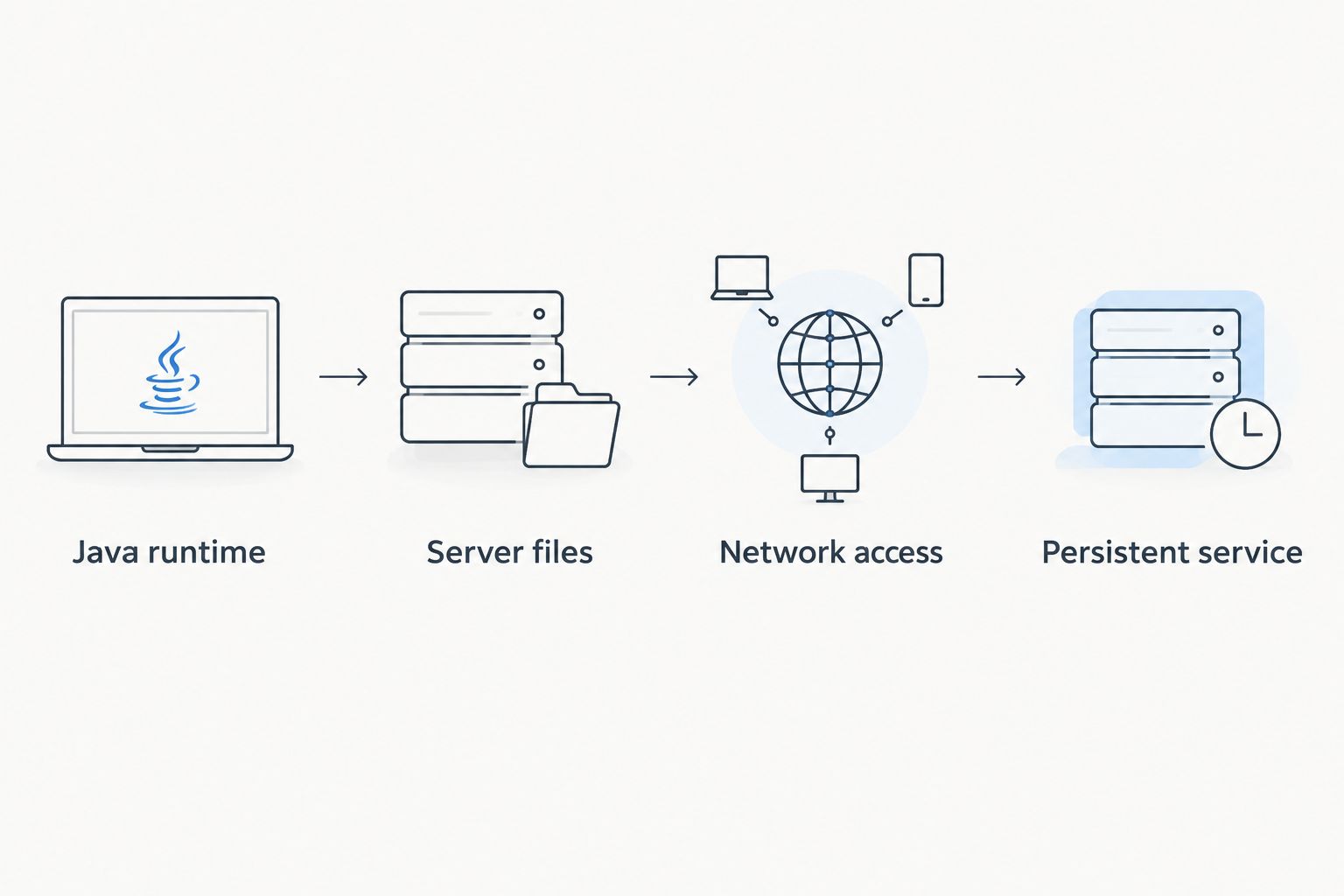
The setup follows a dependency order. Verify each stage before moving to the next; otherwise, a Java error and a firewall error can look like the same failed connection.
Second workflow: update without losing the world
Updating an existing Minecraft server requires a different checkpoint: preserve a recoverable copy before changing the server file. Use this sequence for your 2026 maintenance checklist.
- Announce downtime, then run
sudo systemctl stop minecraft. Confirm the service is inactive and inspect its logs for a clean shutdown before copying files. - Back up the entire
/srv/minecraftdirectory, not just the world folder. Include configuration, allowlist and operator files. Keep another copy outside the VPS; a backup on the same virtual disk does not cover losing that disk. - Download the official server JAR for the intended release and check its Java requirement. Read the release’s upgrade guidance before opening an existing world with it.
- Upload and install the replacement JAR using the earlier ownership command. Start the service, inspect its logs and test joining with a matching client.
- Verify the world, player inventories and access rules before reopening the server to everyone.
Roll back the server files and the matching world backup together. Do not assume an older server can safely open a world already changed by a newer release.
For scheduled backups, automate a clean stop, copy and restart during an announced maintenance window. Alert on a failed copy or failed restart. A recovery test should restore into an isolated directory or separate test server, never overwrite the live world as an experiment.
Troubleshooting
Java reports an unsupported class version
The runtime is older than the server file requires. Check java -version, select the required runtime and restart the service. Replacing the JAR repeatedly will not fix an incompatible Java installation.
Players time out while connecting
Confirm the service is running, then check whether TCP 25565 is listening. Inspect both firewall layers and verify the public IP entered in Server Address. Test from outside the VPS; a local connection does not prove internet reachability.
Minecraft reports an incompatible version
Match the client and server releases and confirm both use Java Edition. Do not confuse an edition mismatch with a network failure: an open TCP port cannot make a Bedrock client compatible with this Java server.
The service restarts repeatedly
Read journalctl -u minecraft before changing settings. Check EULA acceptance, file ownership, the JAR path and available memory. For an out-of-memory termination, inspect kernel logs and reduce heap allocation or adjust the VPS resources.
Players experience lag despite connecting
Check CPU usage, memory pressure and storage activity while the problem occurs. Reduce view-distance or simulation-distance, restart cleanly and compare the same activity again. Do not infer a player limit from RAM alone; world generation and game activity also affect load.
Customize your workflow
Keep a short operations record containing the Minecraft release, Java version, heap settings, firewall rules and backup destination. Update it whenever you change the deployment. Your 2026 recovery procedure should also identify who can access off-server backups.
If you later want repeatable packaging, review the Docker container deployment workflow. Containers change packaging, not your responsibility for persistent world storage, access controls and tested backups.
For Vcclhosting VPS hosting, confirm the operating-system choice, administrator access and workload requirements before selecting a service. Choose resources from observed workload needs, not an unsupported promise of players per gigabyte.
FAQ
What do I need for Minecraft server VPS hosting?
You need a VPS with administrator access, the correct server software, compatible runtime, network rules and backups. For Java Edition, match the Java runtime and client release to the selected server release.
Can I use Vcclhosting for this Linux workflow?
Vcclhosting offers Linux VPS hosting, which is the service category used in this workflow. Confirm the operating-system image, administrator access and resource requirements before choosing a service.
How much RAM does a Minecraft VPS need?
There is no universal RAM requirement that guarantees a particular player count. Leave memory for Linux and Java overhead, then size the heap using observations from your world and player activity.
Which port should I open for Minecraft Java Edition?
Minecraft Java Edition uses TCP 25565 by default. If you change server-port, update both firewall layers and the address players use.
Will Minecraft stop when I close SSH?
A Minecraft process managed by the systemd service in this guide continues after SSH disconnects. Verify that behaviour with a real joining test before inviting players.
Can Bedrock players join this Java server directly?
Bedrock clients cannot directly join the standard Java Edition server configured here. Use the correct edition-specific server or investigate a separately configured compatibility solution.
What is the safest way to update my Minecraft server?
Stop the server cleanly, back up its complete directory off the VPS, then replace the JAR and test. Preserve the previous server files and matching world backup together for recovery.
One last thing
A backup is not a recovery plan until you have restored it. Before calling your 2026 server ready, restore a copy in isolation and confirm that you can open the world with the recorded Minecraft and Java versions.