
Instead of manually starting Odoo and copying database files, host Odoo on VPS infrastructure with Docker Compose, PostgreSQL, HTTPS and a tested backup routine. This 2026 workflow takes you from server access to a working ERP deployment, then separates everyday updates from changes that need a staging test.
- Host Odoo on VPS infrastructure with persistent PostgreSQL storage, a reverse proxy and off-server backups.
- VCCLHosting offers Linux VPS hosting for Indian businesses and developers; configure and maintain Odoo separately.
- Back up the PostgreSQL database and Odoo filestore together before changing modules or application versions.
- Keep database ports private, enable HTTPS and test restoration before entering live business records.
Why this matters
An Odoo installation holds more than application code. PostgreSQL stores business records, while the filestore holds attachments associated with those records. Losing either breaks your recovery plan.
VCCLHosting VPS hosting is best suited to Indian businesses and developers seeking infrastructure for a self-administered Odoo deployment. VCCLHosting offers Linux VPS hosting from its own datacenter in Kolhapur; this guide covers the application configuration, not an included Odoo management service.
Treat your 2026 deployment as a maintained system, not a successful installation screen. Login, document generation, backups and recovery all need verification before staff depend on it.
Before you start
- Server access: Have a Linux VPS, SSH access with sudo privileges, and Docker Engine with the Compose plugin installed. Install Nginx, Certbot and its Nginx plugin using your operating system's supported packages before starting these steps.
- Deployment materials: Have DNS control, a hostname pointing to the VPS, and separate strong secrets for PostgreSQL and Odoo's database-management master password. The example uses the official Odoo Community image; Enterprise requires its own entitlement and corresponding code.
- The recovery gotcha: Odoo attachments are not all inside PostgreSQL. Prepare off-server storage for both the database dump and filestore, and preserve the matching configuration and custom addons.
Allow inbound TCP ports 80 and 443 for the reverse proxy. Restrict SSH to trusted access where practical, and do not expose PostgreSQL port 5432 publicly. Docker-published ports can interact differently with host firewall rules, so the configuration below also binds application ports explicitly to localhost.
Choose the deployment boundary
These are two deployment patterns, not different Odoo products. Choose according to who will maintain the system.
| Pattern | Best for | Advantage | Limitation |
|---|---|---|---|
| Docker Compose | Teams maintaining Odoo alongside other containerised services | Keeps application configuration and persistent volumes explicit | Requires container, volume and image maintenance |
| Native installation | Administrators standardising on operating-system services | Fits existing package and service-management procedures | Requires direct management of Python dependencies and application paths |
Use Docker Compose for this workflow. VCCLHosting VPS hosting supplies the infrastructure context; the deployment method does not remove your responsibility for security patches, capacity checks or recovery.
Server workspace and persistent storage
Prepare the project
- Connect through SSH and create a dedicated project directory:
sudo mkdir -p /opt/odoo
sudo chown "$USER":"$USER" /opt/odoo
cd /opt/odoo
mkdir -p config backups
- Confirm that your account can run
docker infoanddocker compose version. Docker access grants substantial control over the host; do not grant it to untrusted accounts. - Create
.envcontaining a generated database password. Replace the example value before proceeding:
ODOO_DB_PASSWORD=replace_with_a_generated_secret
- Restrict that file and keep it out of source control:
chmod 600 .env
Create compose.yaml:
services:
  db:
    image: postgres:16
    restart: unless-stopped
    environment:
      POSTGRES_DB: odoo
      POSTGRES_USER: odoo
      POSTGRES_PASSWORD: ${ODOO_DB_PASSWORD:?Set ODOO_DB_PASSWORD}
    volumes:
      - postgres_data:/var/lib/postgresql/data

  odoo:
    image: odoo:19.0
    restart: unless-stopped
    depends_on:
      - db
    environment:
      HOST: db
      PORT: "5432"
      USER: odoo
      PASSWORD: ${ODOO_DB_PASSWORD:?Set ODOO_DB_PASSWORD}
    ports:
      - "127.0.0.1:8069:8069"
      - "127.0.0.1:8072:8072"
    volumes:
      - odoo_data:/var/lib/odoo
      - ./config/odoo.conf:/etc/odoo/odoo.conf:ro

volumes:
  postgres_data:
  odoo_data:
The 8069 binding serves Odoo HTTP traffic; 8072 supports the event-driven service used by this multi-worker configuration. Neither binding listens on the VPS's public network interface.
Expected result: docker compose config --quiet exits successfully. Avoid sharing expanded Compose output because it can contain credentials.
Odoo configuration and database initialization
Configure the application
- Create
config/odoo.confwith a different generated secret foradmin_passwd:
[options]
admin_passwd = replace_with_a_different_generated_secret
db_host = db
db_port = 5432
db_user = odoo
db_name = odoo
dbfilter = ^odoo$
list_db = False
proxy_mode = True
http_interface = 0.0.0.0
workers = 2
The official image receives the database password through its environment. Keep the configuration readable by the container's Odoo process, but do not make it writable by unrelated host users.
The 2-worker setting is an example configuration, not a capacity guarantee. Measure memory use and request behaviour under your actual modules and workload before deciding that the VPS is ready for production.
- Start PostgreSQL and check readiness:
docker compose up -d db
docker compose exec db pg_isready -U odoo -d odoo
Continue only after PostgreSQL accepts connections. Container startup does not mean the database is ready.
- Remove the database role's unnecessary cluster-wide privileges:
docker compose exec db psql -U odoo -d odoo -c \
  'ALTER ROLE odoo NOSUPERUSER NOCREATEDB NOCREATEROLE;'
The PostgreSQL image initially creates its configured user with superuser privileges. This deployment uses a pre-created database, so Odoo does not need permission to create additional databases.
- Initialize Odoo, then start the application service:
docker compose run --rm odoo odoo -d odoo -i base --stop-after-init
docker compose up -d odoo
docker compose logs --tail=100 odoo
Expected result: Initialization finishes without a traceback, and the application service stays running. If database authentication fails, fix it before adding the public reverse proxy.
The Odoo image tag identifies an application release, not an immutable build. For a repeatable 2026 deployment, record the tested image digest and retain it with your deployment configuration.
Reverse proxy and HTTPS
Configure public access
- Create an Nginx site configuration. Replace
erp.example.comwith your actual hostname:
server {
    listen 80;
    server_name erp.example.com;

    location /websocket {
        proxy_pass http://127.0.0.1:8072;
        proxy_http_version 1.1;
        proxy_set_header Upgrade $http_upgrade;
        proxy_set_header Connection "upgrade";
        proxy_set_header Host $host;
        proxy_set_header X-Forwarded-Host $host;
        proxy_set_header X-Forwarded-For $proxy_add_x_forwarded_for;
        proxy_set_header X-Forwarded-Proto $scheme;
    }

    location / {
        proxy_pass http://127.0.0.1:8069;
        proxy_set_header Host $host;
        proxy_set_header X-Forwarded-Host $host;
        proxy_set_header X-Forwarded-For $proxy_add_x_forwarded_for;
        proxy_set_header X-Forwarded-Proto $scheme;
    }
}
- Enable the site using your distribution's Nginx layout. Remove a conflicting default server configuration if it intercepts the hostname, then validate and reload:
sudo nginx -t
sudo systemctl reload nginx
- Obtain the certificate and configure redirection:
sudo certbot --nginx -d erp.example.com --redirect
sudo certbot renew --dry-run
Certificate validation requires correct public DNS and reachable HTTP access. Check for an incorrect IPv6 record as well as an incorrect IPv4 record.
- Open the hostname in a browser and verify HTTPS, login and application behaviour. If the fresh database uses default application credentials, replace them immediately before entering business data.
Expected result: The browser reaches Odoo over HTTPS without a certificate warning. PostgreSQL and the Odoo backend ports remain inaccessible directly from the public network.
Backup and release controls
Establish a recovery checkpoint
- Create a test record and upload an attachment. Generate a PDF using a report relevant to your business, rather than assuming successful login proves the whole installation works.
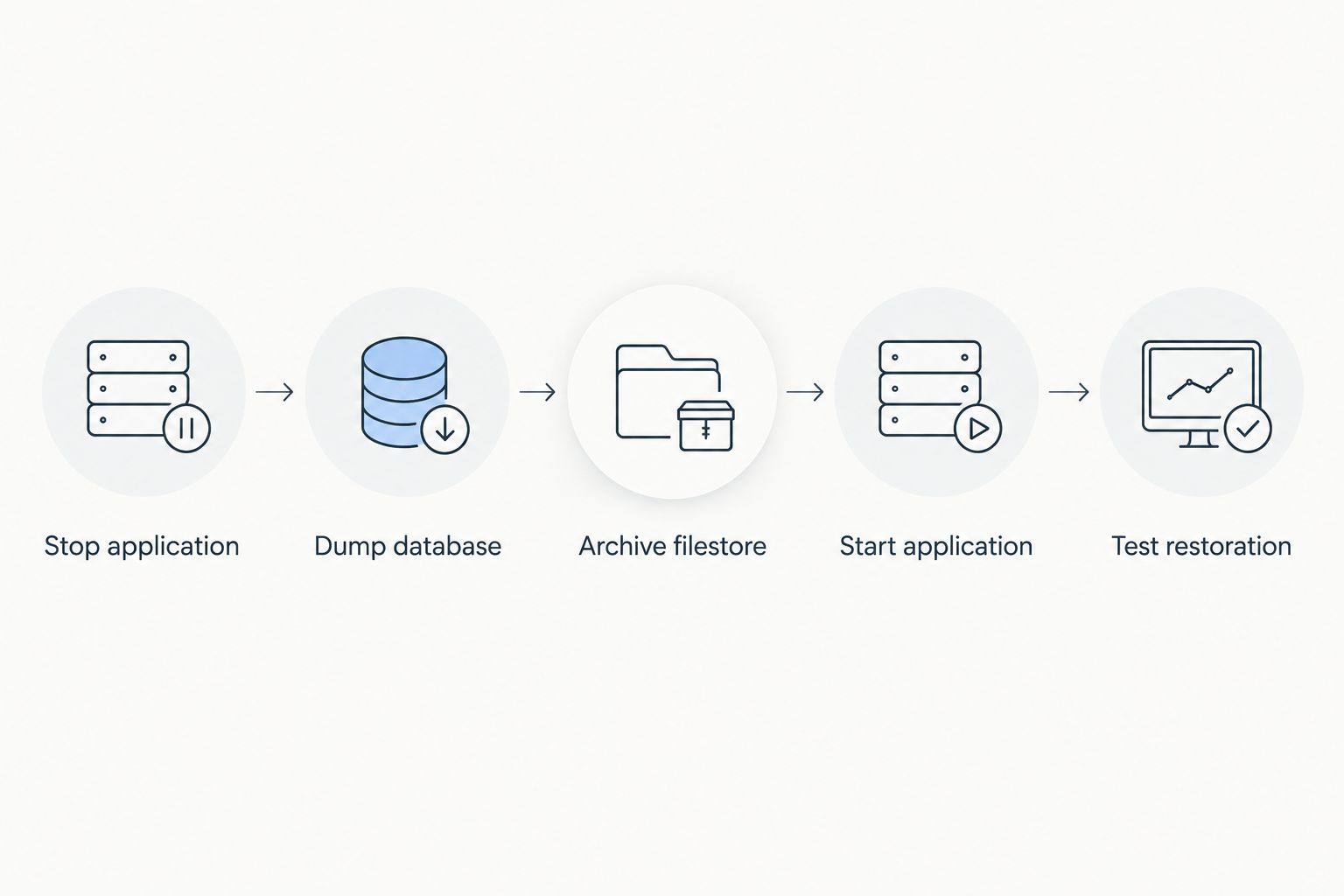
- Stop the application briefly before taking a consistent database-and-filestore backup:
docker compose stop odoo
docker compose exec -T db pg_dump -U odoo -d odoo -Fc \
  > backups/odoo.dump
docker compose run --rm --no-deps --entrypoint tar odoo \
  -czf - -C /var/lib/odoo filestore > backups/filestore.tar.gz
docker compose start odoo
- Check each command's exit status. If either backup command fails, restart Odoo, investigate the failure and discard the incomplete backup set. For automation, use failure handling that always restarts the application.
- Copy the completed backup set off the VPS. Preserve Compose configuration, secrets securely, image digests and matching custom-addon code alongside your recovery records.
- Restore into an isolated environment. Confirm that you can log in, open the test record and download its attachment.
These example filenames are suitable for a first test, not a retention system: repeating the commands overwrites them. Use distinct backup directories and verify transferred files before removing older copies.
Expected result: A separate instance opens the restored attachment, not merely the restored database. A backup stored only on the production VPS does not protect against losing that server.
Update Odoo whenever your deployment changes
A second workflow starts when you change an image, install an addon or alter configuration. Test the change in staging before touching production.
- Restore the latest production backup into an isolated staging project with separate volumes, credentials and hostname.
- Disable outgoing mail, scheduled integrations and external callbacks before starting the restored application. A staging copy must not send real invoices or modify connected systems.
- Apply the proposed change and test the affected business process, including reports and attachments.
- Take a fresh production recovery checkpoint, schedule the change, and repeat the tested procedure.
- Verify the live result and record the deployed image digest and addon revision.
A routine image refresh and a major Odoo upgrade are different operations. Major upgrades require a database migration plan; changing the image tag alone is not that plan.
For 2026 maintenance, keep a short release record describing what changed and which recovery checkpoint preceded it. Returning to an older image does not reverse database changes made by a module update.
Troubleshooting
Odoo cannot authenticate to PostgreSQL
Compare the application credentials with the existing database role. Changing .env does not reset a password inside an already initialized PostgreSQL volume. Update the role and application credentials together; do not delete the volume to resolve a login error.
Nginx returns a bad gateway response
Run docker compose ps and inspect the Odoo logs. Confirm the application listens on its configured port and that Nginx points to the matching localhost binding. Restarting Nginx cannot fix a failing application container.
Login works, but chat or live notifications fail
Check the /websocket proxy route, upgrade headers and event-service binding. This guide enables workers, so websocket traffic needs the separate event-service route rather than the ordinary HTTP backend.
Restored records have missing attachments
Restore the matching filestore and check its ownership and database directory name. A PostgreSQL dump alone does not recreate attachment files. Renaming a restored database also requires aligning its filestore directory.
Uploads fail at the reverse proxy
Check the Nginx error log for a request-body limit. Set client_max_body_size deliberately for your expected attachments and available storage, then validate and reload Nginx. Do not remove upload limits without considering abuse and disk consumption.
Customize your workflow
Start with monitoring for disk use, memory pressure, service restarts and failed backups. Add an external HTTPS check so a running container is not mistaken for a working ERP system.
For Indian teams choosing infrastructure, confirm the VPS administration boundary and recovery responsibilities before deployment. VCCLHosting provides Linux VPS hosting; this workflow does not assume that Odoo installation, migration or application support is included.
The Docker containers on a VPS workflow provides an adjacent guide for organising container deployments. Keep production and staging separate as your application estate grows.
FAQ
Can I host Odoo on VPS infrastructure instead of shared hosting?
Yes. A VPS gives you control over Odoo processes, PostgreSQL, persistent storage and the reverse proxy. You also take responsibility for maintaining those components unless application management is explicitly included.
Is VCCLHosting suitable for an Odoo deployment in India?
VCCLHosting offers Linux VPS hosting from its own datacenter in Kolhapur for Indian businesses and developers. Confirm the selected server's resources and support scope against your Odoo workload before deploying.
How much memory does an Odoo VPS need?
Memory requirements depend on workers, installed modules, concurrent activity and background jobs. Test representative business operations and measure memory use instead of treating an example worker count as a sizing guarantee.
Which ports should I expose for Odoo?
Expose HTTPS through the reverse proxy and allow HTTP where needed for redirection and certificate validation. Keep PostgreSQL and Odoo backend ports private, and restrict administrative access.
Does an Odoo database backup include attachments?
A PostgreSQL dump does not include files stored in Odoo's filestore. Back up and restore the database and matching filestore together, preserving configuration and custom addons as well.
Can I upgrade Odoo by changing its Docker image tag?
Changing the image tag is not a complete major-version upgrade procedure. Test the required database migration and addon compatibility in staging before changing production.
Should I use Docker Compose or a native Odoo installation?
Use Docker Compose when you want explicit service definitions and persistent-volume configuration. Choose a native installation when your administrators already maintain applications through operating-system services and dependency management.
One last thing
Test an attachment, not just a login. For your 2026 recovery drill, restore into isolation and open a document uploaded before the backup. That check catches a missing filestore that a successful database restore can conceal.