

Instead of configuring every ASP.NET website directly in IIS, install Plesk on your Windows VPS and use it to create the website, deploy published files, and manage HTTPS. This 2026 Plesk Windows VPS hosting guide covers the setup sequence, the difference between ASP.NET Framework and ASP.NET Core, and the checks that confirm your application actually works.
- Plesk Windows VPS hosting centralizes website administration; IIS still serves your ASP.NET application.
- VCCLHosting serves Indian businesses and developers seeking Windows VPS hosting.
- Install the matching ASP.NET runtime before deploying your published application.
- Test HTTPS, application routes, database access, and restart behaviour before switching production traffic.
Why this matters
Plesk runs on the Windows VPS; it is not a separate service that replaces IIS. The panel manages hosting configuration, while IIS and the installed application runtime handle requests.
VCCLHosting Windows VPS hosting suits Indian businesses and developers seeking Windows infrastructure for ASP.NET hosting. Confirm the Windows release, administrator access, and Plesk licensing arrangements before choosing a server through VCCLHosting.
A successful panel login proves only that Plesk is reachable. Your application also needs a compatible runtime, correct document root, working configuration, and access to its dependencies.
Before you start
- Server access: Have Windows administrator access, a supported Windows Server release, and a Plesk licence appropriate to your deployment. For a new installation, start with a clean server rather than an existing production IIS configuration.
- Application materials: Prepare a domain you control, DNS access, published application output, production configuration, and database credentials. Record whether the application targets ASP.NET Framework or ASP.NET Core.
- The installation-order gotcha: ASP.NET Core requires IIS integration from the Microsoft .NET Hosting Bundle, including for self-contained deployments. Install IIS before the bundle; if you installed the bundle first, repair or reinstall it after IIS is present.
For a 2026 deployment, check the current compatibility requirements for Plesk, Windows Server, and your application's target runtime together. A supported panel does not make an unsupported application runtime safe.
Choose the correct ASP.NET hosting path
Match the server to the application, not the other way around. ASP.NET Framework and ASP.NET Core use different hosting components, so changing a Plesk dropdown is not a substitute for installing the correct runtime.
| Hosting path | Best for | Required setup | Advantage | Limitation |
|---|---|---|---|---|
| ASP.NET Framework | Existing applications built for .NET Framework | Required Windows features, compatible Framework version, appropriate IIS application pool | Fits applications that depend on Framework-specific APIs | Does not run an ASP.NET Core application merely by changing its version setting |
| ASP.NET Core | Applications built for modern .NET | IIS integration from the Hosting Bundle; matching runtime for framework-dependent deployment | Supports modern .NET applications behind IIS | Requires attention to runtime compatibility, process startup, and deployment files |
VCCLHosting provides Windows VPS hosting; the application determines which of these configurations you need. Confirm the server configuration separately from the hosting purchase.
Server and Plesk installation
- Confirm compatibility. Check your intended Plesk release against the Windows Server release before installing. Apply required Windows updates and complete pending restarts.
- Install Plesk. Obtain the Windows installer from Plesk's official site, run it with administrator privileges, and follow its installation workflow. Select the web-hosting components required for your application rather than adding unrelated services.
- Complete initial configuration. Set the administrator credentials, server identity, and licence information. Keep these credentials separate from the website's deployment credentials.
- Configure network access. Plesk's HTTPS interface normally uses TCP port 8443. Permit administrative access only from trusted addresses where your firewall setup allows it. Website traffic normally needs TCP port 80 for HTTP and TCP port 443 for HTTPS.
- Review installed components. In Plesk, open Tools & Settings, then Updates. Use Add/Remove Components in the installer to review and install the Windows web-hosting components your application needs.
Keep Windows Firewall and any provider-side firewall consistent. Opening a port in only one layer does not establish a working connection.
Expected result: You can sign in to Plesk, the licence is accepted, and the required web-hosting components are installed. Do not expose your database service publicly just to make the website deployment easier.
Domain and document-root configuration
- Create the website. Open Websites & Domains and select Add Domain. Enter the domain you control and choose website hosting rather than forwarding.
- Check the hosting configuration. Open Hosting Settings for the domain. Confirm the assigned IP address and Document root. Plesk commonly uses
httpdocs, but the configured value is the one that matters. - Prepare DNS. Set the domain's A record to the VPS's public IPv4 address. Configure the
wwwhostname only if you intend to serve it. Remove or correct an AAAA record if the server is not configured to serve that domain over IPv6. - Preserve existing services. When changing DNS, retain the mail and verification records your business still uses. Moving a website does not require moving email.
- Plan HTTPS. After DNS resolves to the correct server, install a certificate covering the hostnames you will use. Enable HTTP-to-HTTPS redirection only after HTTPS works without certificate errors.
For a migration, keep the existing website running while you test the new host. A local hosts-file override lets your computer request the domain from the new IP without changing public DNS; remove that override after testing.
Expected result: Plesk shows the domain with the intended document root, and requests to the domain reach the correct server. Your mail records remain intact.
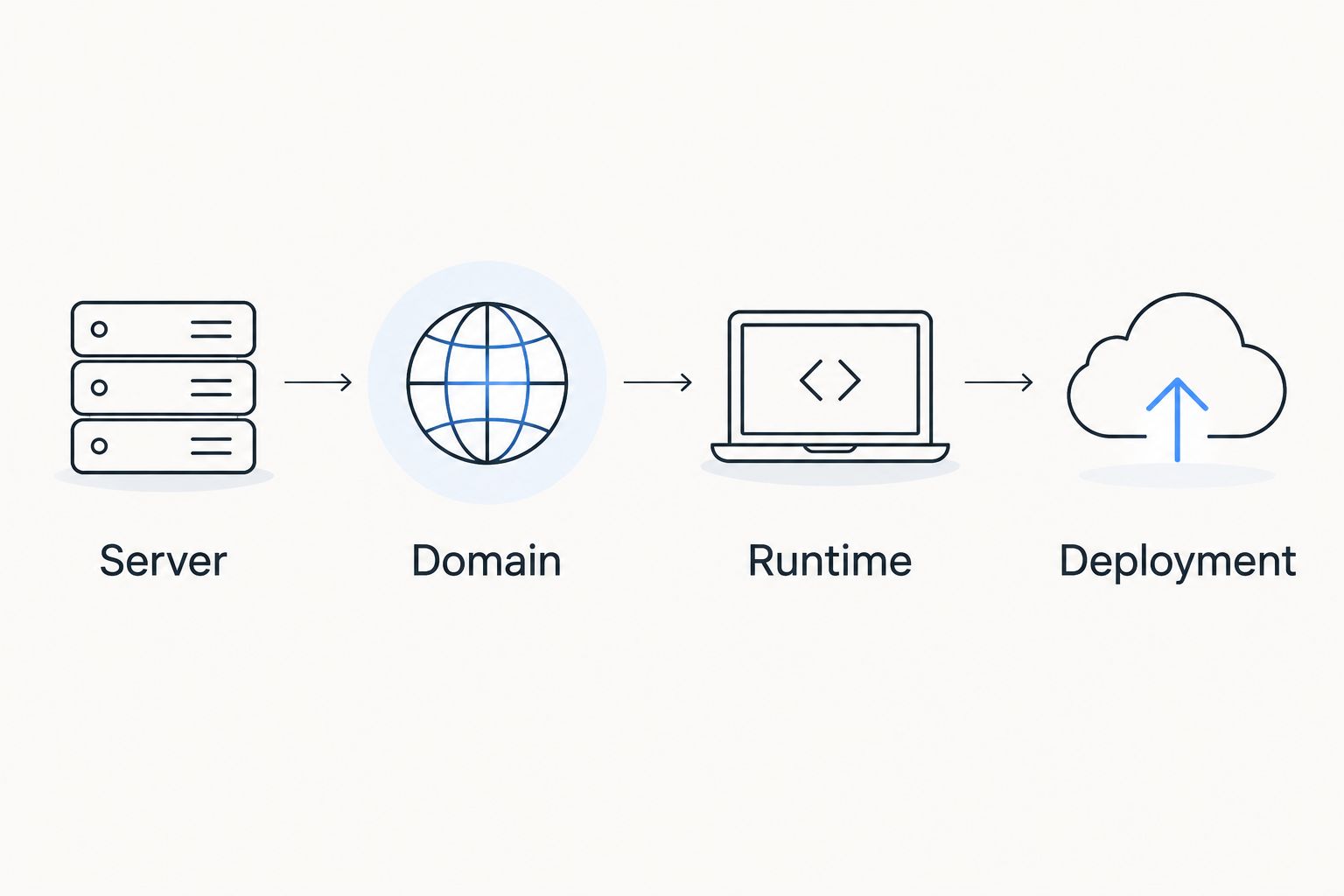
The setup follows a dependency chain: the website needs a domain binding before the published application can be tested under its real hostname.
Runtime and application-pool configuration
- Identify the target. Read the application's project configuration or deployment documentation. Determine whether it targets .NET Framework or modern .NET, and whether its published output is framework-dependent or self-contained.
- Configure Framework applications. Enable the required ASP.NET Windows components. In the domain's ASP.NET Settings, select a compatible installed Framework version where that option is exposed. Check any application-specific requirements separately.
- Configure Core applications. Install the Microsoft .NET Hosting Bundle appropriate to the application and supported Windows environment. Framework-dependent applications need the matching runtime; self-contained applications still need the IIS ASP.NET Core Module supplied through the bundle.
- Check the application pool. In IIS Manager, inspect the site's application pool. For ASP.NET Core, Microsoft recommends setting .NET CLR Version to No Managed Code. This setting does not replace the Hosting Bundle.
- Apply required restarts. Follow the installer instructions for restarting IIS services or Windows. Schedule disruptive changes around other sites already using the server.
Expected result: The server has the required runtime and IIS integration, and the application pool configuration matches the application type.
For 2026 maintenance, record runtime updates separately from application releases. Updating Plesk alone does not update every runtime or dependency your application uses.
Published application deployment
- Publish a release build. Use your development or build environment to generate deployable output. Do not upload the source repository and assume IIS will build it. For ASP.NET Core, preserve the generated
web.configneeded for IIS hosting. - Protect the existing release. Back up the current application files and production configuration. Back up the database before a deployment that changes its schema, and understand whether the old application can use the changed schema.
- Upload the output. Open the domain's File Manager, enter its document root, and use Upload to transfer the published files. If you upload an archive, extract its contents into the intended application directory rather than leaving the website inside an extra nested folder.
- Apply production configuration. Set the correct database connection, environment, external-service credentials, and writable directories. Keep secrets out of public files and source control. Grant write access only where the application needs it.
- Verify the application. Test the home page, a nested route, authentication, database operations, and any application-specific upload or background task. Check both the intended hostname and HTTPS behaviour.
- Check recovery. Restart the application pool during a controlled test, then repeat a meaningful request. An application that works only until its first restart is not ready for production.
Expected result: Your published application runs under its domain over HTTPS, accesses its dependencies, and starts again after an application-pool restart.
Do not treat a default IIS page as a successful deployment. It confirms that a web server answered, not that your ASP.NET application did.
Variant: deploy updates whenever your application changes
For repeat deployments in 2026, use a build-and-release workflow instead of manually copying miscellaneous changed files. Best for recurring releases: publish a complete, identifiable release artifact and deploy that artifact consistently.
- Build and publish the application outside production.
- Validate the artifact against a separate test environment with the same required runtime.
- Back up production files and configuration before replacing the release.
- For an ASP.NET Core application hosted through the ASP.NET Core Module, place
app_offline.htmin the application root while replacing files. This stops the application and helps release locked files. - Deploy the complete artifact, preserve environment-specific settings, and remove
app_offline.htmwhen the deployment is ready. - Run the same application checks used for the initial deployment. Restore the previous release if validation fails and the database remains compatible.
This workflow makes releases repeatable, but it does not create zero-downtime deployment. The offline file deliberately interrupts the application, and database changes need their own recovery plan.
Troubleshooting
Plesk does not open
Check that the server is running, the Plesk service is healthy, and TCP port 8443 is permitted through both firewall layers. If you restricted access by source address, confirm that your current public IP is allowed.
The domain displays the wrong website
Check the domain's A and AAAA records, then inspect the IIS binding and Plesk domain configuration. Verify that the published files are in the configured document root rather than a second httpdocs directory inside it.
IIS returns HTTP 500.19
Inspect the detailed IIS error and its configuration path. This error indicates invalid configuration; causes include malformed web.config, unavailable configuration modules, and access problems. Fix the reported cause rather than deleting configuration entries at random.
ASP.NET Core returns HTTP 500.30
Investigate application startup. Check runtime installation, production settings, database connectivity, and Windows Event Viewer. Temporarily enable ASP.NET Core Module stdout logging when needed, grant access to its log directory, and disable it after diagnosis.
Deployment fails because files are locked
For ASP.NET Core, use app_offline.htm during file replacement and confirm that the process has stopped. Stop the relevant application pool if necessary; avoid restarting every website on a shared server for one application's deployment.
Customize your workflow
Add release identifiers, a health-check endpoint, scheduled backups, and a documented restore procedure. Keep administrative credentials separate from deployment access, and restrict remote administration to trusted networks.
If you place a proxy in front of the website, configure certificate handling and forwarded headers deliberately. The Cloudflare-to-VPS configuration guide covers that adjacent setup; a proxy does not fix an application that fails locally on the server.
For VCCLHosting Windows VPS hosting, confirm responsibility for operating-system updates, Plesk maintenance, backups, and application support before production. Treat each responsibility as a separate operational task.
FAQ
How do I connect Plesk to a Windows VPS for ASP.NET hosting?
Install Plesk on the Windows VPS, create the domain, configure the required ASP.NET runtime, and deploy the published application into its document root. Plesk manages the hosting configuration; IIS serves the application.
Does Plesk replace IIS on Windows?
No. Plesk manages Windows website hosting through IIS rather than replacing it. IIS bindings, application pools, and runtime components still determine how requests reach your application.
Can Plesk Windows VPS hosting run ASP.NET Core?
Yes, when the Windows environment, IIS integration, and application runtime are compatible. Install the appropriate Microsoft .NET Hosting Bundle and deploy the published application with its generated IIS configuration.
Do I need a Hosting Bundle for a self-contained ASP.NET Core application?
Yes, IIS hosting still requires the ASP.NET Core Module supplied through the Hosting Bundle. A self-contained deployment includes its application runtime but does not replace IIS integration.
Which ports does a Plesk Windows server use?
Plesk's HTTPS administration interface normally uses TCP port 8443, while websites normally use TCP ports 80 and 443. Restrict administrative access and open other ports only for services you intentionally operate.
Why does my ASP.NET application fail after uploading its files?
Check the runtime, document root, web.config, permissions, and production settings first. Use the precise IIS error and application logs to distinguish configuration failures from application startup failures.
Can I update an ASP.NET Core application without locked-file errors?
Use app_offline.htm in the application root while replacing files under the ASP.NET Core Module. Remove the file after deployment and validate the application; this method intentionally creates an interruption.
One last thing
A working home page is not a release test. Before your 2026 launch, perform an operation that writes to the database, restart the application pool, and confirm that the application still works. Those checks expose failures that a static landing page hides.